> ## Documentation Index
> Fetch the complete documentation index at: https://docs-staging-docs-event-stream-action-templates.mintlify.site/llms.txt
> Use this file to discover all available pages before exploring further.

# Vault

> ActionsでVaultのフォームを使用する方法について説明します。

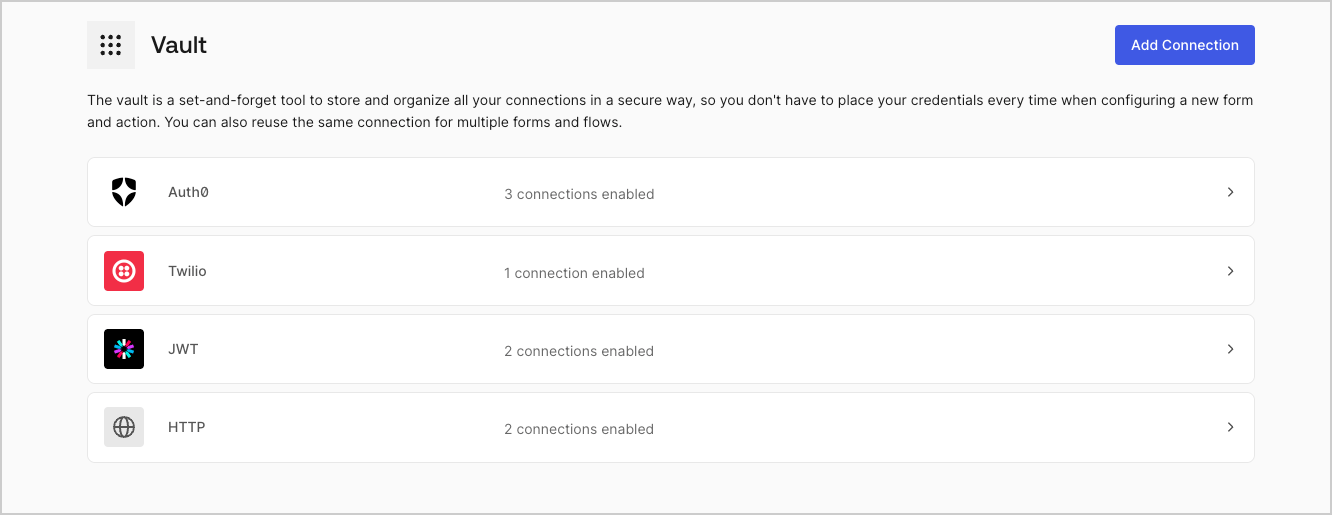
Vaultでは、シークレットや共通の設定（例：APIキー、アクセストークン、リフレッシュトークンなど）を安全に保存し、Vault接続として外部サービスや統合を使用した要求を認証できます。

<Callout icon="file-lines" color="#0EA5E9" iconType="regular">
  * 接続の中には、ユーザーに対して資格情報の提供を求めるものがあります（たとえば、Auth0でマシンツーマシン（M2M）アプリケーションを使う場合は、使用期限とリフレッシュトークンのあるアクセストークンを生成します）。接続は、両方のトークンを保管し、期限が切れる前に新しいアクセストークンを生成します。
  * 外部サービスによっては、API資格情報の生成にスコープの認可が必要です。スコープを変更した場合は、接続で問題が発生しないように、それらのサービスへの接続を更新してください。
  * 追加した接続は、すぐにフローで使用できます。既存の接続に対する更新は、自動的に反映されます。
</Callout>

## Vault接続を作成および変更する

アクションに資格情報が必要な場合、VaultページまたはフローエディターからVaultへの接続を作成・変更します。

### VaultページからVault接続を作成する

以下の手順に従って、VaultページからVault接続を追加します。

1. **［Auth0 Dashboard］>［Actions（アクション）］>［Forms（フォーム）］** の順に選択して、フォームエディターを開きます。

2. 左上隅の **{tenantName} >* \*\*\* ［Vault］*\* をクリックして、Vaultページを開きます。

   <Frame>
     <img src="https://mintcdn.com/docs-staging-docs-event-stream-action-templates/EkSLF0_s1jlrOSCI/docs/images/ja-jp/cdy7uua7fh8z/1sPNPKO6nuEDCuiYGRWSur/d85dc616170eaf2d7d5f321750863ccf/vault-connections-example.png?fit=max&auto=format&n=EkSLF0_s1jlrOSCI&q=85&s=669569b76d03c60d3e107ff374df5545" alt="Dashboard > Forms > Vault" data-og-width="1332" width="1332" data-og-height="515" height="515" data-path="docs/images/ja-jp/cdy7uua7fh8z/1sPNPKO6nuEDCuiYGRWSur/d85dc616170eaf2d7d5f321750863ccf/vault-connections-example.png" data-optimize="true" data-opv="3" srcset="https://mintcdn.com/docs-staging-docs-event-stream-action-templates/EkSLF0_s1jlrOSCI/docs/images/ja-jp/cdy7uua7fh8z/1sPNPKO6nuEDCuiYGRWSur/d85dc616170eaf2d7d5f321750863ccf/vault-connections-example.png?w=280&fit=max&auto=format&n=EkSLF0_s1jlrOSCI&q=85&s=4510474f6b45a73fa353fe381547c103 280w, https://mintcdn.com/docs-staging-docs-event-stream-action-templates/EkSLF0_s1jlrOSCI/docs/images/ja-jp/cdy7uua7fh8z/1sPNPKO6nuEDCuiYGRWSur/d85dc616170eaf2d7d5f321750863ccf/vault-connections-example.png?w=560&fit=max&auto=format&n=EkSLF0_s1jlrOSCI&q=85&s=4aa8c8a962baa7ad7d8bcb34298f553d 560w, https://mintcdn.com/docs-staging-docs-event-stream-action-templates/EkSLF0_s1jlrOSCI/docs/images/ja-jp/cdy7uua7fh8z/1sPNPKO6nuEDCuiYGRWSur/d85dc616170eaf2d7d5f321750863ccf/vault-connections-example.png?w=840&fit=max&auto=format&n=EkSLF0_s1jlrOSCI&q=85&s=8f7b2377d604506e1239b6a7390bdf56 840w, https://mintcdn.com/docs-staging-docs-event-stream-action-templates/EkSLF0_s1jlrOSCI/docs/images/ja-jp/cdy7uua7fh8z/1sPNPKO6nuEDCuiYGRWSur/d85dc616170eaf2d7d5f321750863ccf/vault-connections-example.png?w=1100&fit=max&auto=format&n=EkSLF0_s1jlrOSCI&q=85&s=8722de9877e3436467fd041e494c85ed 1100w, https://mintcdn.com/docs-staging-docs-event-stream-action-templates/EkSLF0_s1jlrOSCI/docs/images/ja-jp/cdy7uua7fh8z/1sPNPKO6nuEDCuiYGRWSur/d85dc616170eaf2d7d5f321750863ccf/vault-connections-example.png?w=1650&fit=max&auto=format&n=EkSLF0_s1jlrOSCI&q=85&s=a6133fd6e40a99f25e2e1c13de288ea2 1650w, https://mintcdn.com/docs-staging-docs-event-stream-action-templates/EkSLF0_s1jlrOSCI/docs/images/ja-jp/cdy7uua7fh8z/1sPNPKO6nuEDCuiYGRWSur/d85dc616170eaf2d7d5f321750863ccf/vault-connections-example.png?w=2500&fit=max&auto=format&n=EkSLF0_s1jlrOSCI&q=85&s=53c9076ad690a9e749cd2c69b5a43664 2500w" />
   </Frame>

3. **［Add Vault Connection（Vault接続を追加）］** を選択します。

4. 必要なアクションを選択し、 **［Continue（続行）］** をクリックします。

5. Vaultの **［Connection name（接続名）］** を追加し、 **［Continue（続行）］** を選択します。

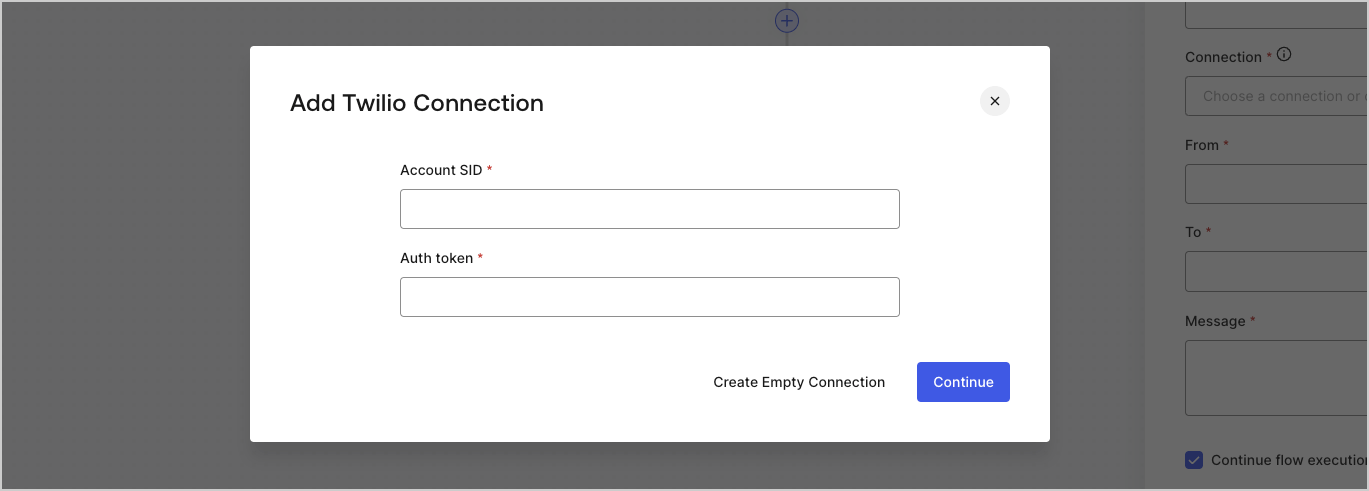
6. 資格情報を入力します。特定の資格情報がない場合は、 **［Create an empty connection（空の接続を作成）］** を選択し、後で資格情報を追加することもできます。空の接続には、資格情報が不足していることを示すオレンジ色のアイコンが表示されます。
7. **［Add Vault Connection（Vault接続を追加）］** を選択します。

### フローエディターからVault接続を作成する

フローアクションから、たとえばTwilioのようなVault接続を追加するには、以下の手順を実行します。

1. **［Auth0 Dashboard］>［Actions（アクション）］>［Forms（フォーム）］>［Flows（フロー）］** の順に選択して、フローエディターを開きます。

2. フローを選択し、 **［Send SMS with Twillo（TwilloでSMSを送信］** アクションを追加します。

3. アクションの **［Vault connection（Vault接続）］** 設定で、 **+** アイコンを選択します。

   <Frame>
     <img src="https://mintcdn.com/docs-staging-docs-event-stream-action-templates/RyX5DmtmPSJ7j--8/docs/images/ja-jp/cdy7uua7fh8z/1AsaznhRKxm5LZxPlcbfUw/10e5a8af700aab909f5b03fcd266da7e/twilio-vault-connection.png?fit=max&auto=format&n=RyX5DmtmPSJ7j--8&q=85&s=790cf37d1353f618b8c984ca2c0a1fb3" alt="Dashboard > Forms > Vault " data-og-width="1104" width="1104" data-og-height="191" height="191" data-path="docs/images/ja-jp/cdy7uua7fh8z/1AsaznhRKxm5LZxPlcbfUw/10e5a8af700aab909f5b03fcd266da7e/twilio-vault-connection.png" data-optimize="true" data-opv="3" srcset="https://mintcdn.com/docs-staging-docs-event-stream-action-templates/RyX5DmtmPSJ7j--8/docs/images/ja-jp/cdy7uua7fh8z/1AsaznhRKxm5LZxPlcbfUw/10e5a8af700aab909f5b03fcd266da7e/twilio-vault-connection.png?w=280&fit=max&auto=format&n=RyX5DmtmPSJ7j--8&q=85&s=361e244f1db61ce7df641e4bc25a6c44 280w, https://mintcdn.com/docs-staging-docs-event-stream-action-templates/RyX5DmtmPSJ7j--8/docs/images/ja-jp/cdy7uua7fh8z/1AsaznhRKxm5LZxPlcbfUw/10e5a8af700aab909f5b03fcd266da7e/twilio-vault-connection.png?w=560&fit=max&auto=format&n=RyX5DmtmPSJ7j--8&q=85&s=b4ae364bfe27d9a6507030f7ef2a12cb 560w, https://mintcdn.com/docs-staging-docs-event-stream-action-templates/RyX5DmtmPSJ7j--8/docs/images/ja-jp/cdy7uua7fh8z/1AsaznhRKxm5LZxPlcbfUw/10e5a8af700aab909f5b03fcd266da7e/twilio-vault-connection.png?w=840&fit=max&auto=format&n=RyX5DmtmPSJ7j--8&q=85&s=acfeed52fdee82289dedb2d483ed4037 840w, https://mintcdn.com/docs-staging-docs-event-stream-action-templates/RyX5DmtmPSJ7j--8/docs/images/ja-jp/cdy7uua7fh8z/1AsaznhRKxm5LZxPlcbfUw/10e5a8af700aab909f5b03fcd266da7e/twilio-vault-connection.png?w=1100&fit=max&auto=format&n=RyX5DmtmPSJ7j--8&q=85&s=02ce91b570fa594f3c34a179d423dc6e 1100w, https://mintcdn.com/docs-staging-docs-event-stream-action-templates/RyX5DmtmPSJ7j--8/docs/images/ja-jp/cdy7uua7fh8z/1AsaznhRKxm5LZxPlcbfUw/10e5a8af700aab909f5b03fcd266da7e/twilio-vault-connection.png?w=1650&fit=max&auto=format&n=RyX5DmtmPSJ7j--8&q=85&s=48d85e2d7d80ee14b1ab93d40683c63b 1650w, https://mintcdn.com/docs-staging-docs-event-stream-action-templates/RyX5DmtmPSJ7j--8/docs/images/ja-jp/cdy7uua7fh8z/1AsaznhRKxm5LZxPlcbfUw/10e5a8af700aab909f5b03fcd266da7e/twilio-vault-connection.png?w=2500&fit=max&auto=format&n=RyX5DmtmPSJ7j--8&q=85&s=ef0b721d0b0f0230bfa4b4d6ea3f0350 2500w" />
   </Frame>

4. Vaultの **［Connection name（接続名）］** を追加し、 **［Continue（続行）］** を選択します。

5. 資格情報を入力します。特定の資格情報がない場合は、 **［Create an empty connection（空の接続を作成）］** を選択し、後で資格情報を追加することもできます。空の接続には、資格情報が不足していることを示すオレンジ色のアイコンが表示されます。

   <Frame>
     <img src="https://mintcdn.com/docs-staging-docs-event-stream-action-templates/-xlg3oO-95mZAQ4S/docs/images/ja-jp/cdy7uua7fh8z/yobXanutPRCO3FWek8cOk/bc29e39fb8593cff35e2738234bfe6fe/twilio-vault-settings.png?fit=max&auto=format&n=-xlg3oO-95mZAQ4S&q=85&s=20bf2db7415352698b180f6d59d8a0a1" alt="Dashboard > Forms > Vault > Twilio connection settings" data-og-width="1369" width="1369" data-og-height="491" height="491" data-path="docs/images/ja-jp/cdy7uua7fh8z/yobXanutPRCO3FWek8cOk/bc29e39fb8593cff35e2738234bfe6fe/twilio-vault-settings.png" data-optimize="true" data-opv="3" srcset="https://mintcdn.com/docs-staging-docs-event-stream-action-templates/-xlg3oO-95mZAQ4S/docs/images/ja-jp/cdy7uua7fh8z/yobXanutPRCO3FWek8cOk/bc29e39fb8593cff35e2738234bfe6fe/twilio-vault-settings.png?w=280&fit=max&auto=format&n=-xlg3oO-95mZAQ4S&q=85&s=57bc80e2d7ce71919c1953491d2b439f 280w, https://mintcdn.com/docs-staging-docs-event-stream-action-templates/-xlg3oO-95mZAQ4S/docs/images/ja-jp/cdy7uua7fh8z/yobXanutPRCO3FWek8cOk/bc29e39fb8593cff35e2738234bfe6fe/twilio-vault-settings.png?w=560&fit=max&auto=format&n=-xlg3oO-95mZAQ4S&q=85&s=14f95619ebf665e2c968a0956ba4e725 560w, https://mintcdn.com/docs-staging-docs-event-stream-action-templates/-xlg3oO-95mZAQ4S/docs/images/ja-jp/cdy7uua7fh8z/yobXanutPRCO3FWek8cOk/bc29e39fb8593cff35e2738234bfe6fe/twilio-vault-settings.png?w=840&fit=max&auto=format&n=-xlg3oO-95mZAQ4S&q=85&s=609ff646f0bf71a1575bb20ab35cce2f 840w, https://mintcdn.com/docs-staging-docs-event-stream-action-templates/-xlg3oO-95mZAQ4S/docs/images/ja-jp/cdy7uua7fh8z/yobXanutPRCO3FWek8cOk/bc29e39fb8593cff35e2738234bfe6fe/twilio-vault-settings.png?w=1100&fit=max&auto=format&n=-xlg3oO-95mZAQ4S&q=85&s=783affe73dfe831ab0ee823ecd139c99 1100w, https://mintcdn.com/docs-staging-docs-event-stream-action-templates/-xlg3oO-95mZAQ4S/docs/images/ja-jp/cdy7uua7fh8z/yobXanutPRCO3FWek8cOk/bc29e39fb8593cff35e2738234bfe6fe/twilio-vault-settings.png?w=1650&fit=max&auto=format&n=-xlg3oO-95mZAQ4S&q=85&s=e6a403b56580d97ea4412a6e2ca625af 1650w, https://mintcdn.com/docs-staging-docs-event-stream-action-templates/-xlg3oO-95mZAQ4S/docs/images/ja-jp/cdy7uua7fh8z/yobXanutPRCO3FWek8cOk/bc29e39fb8593cff35e2738234bfe6fe/twilio-vault-settings.png?w=2500&fit=max&auto=format&n=-xlg3oO-95mZAQ4S&q=85&s=19ab3aa2acebc63a318c323bd260d66e 2500w" />
   </Frame>

6. **［Add Vault Connection（Vault接続を追加）］** を選択します。