> ## Documentation Index
> Fetch the complete documentation index at: https://docs-staging-docs-event-stream-action-templates.mintlify.site/llms.txt
> Use this file to discover all available pages before exploring further.

> Describes how to use the Vault of Forms for Actions.

# Vaults

The vault lets you securely store secrets or common settings (for example: API keys, <Tooltip tip="Access Token: Authorization credential, in the form of an opaque string or JWT, used to access an API." cta="View Glossary" href="/docs/glossary?term=access+tokens">access tokens</Tooltip>, <Tooltip tip="Access Token: Authorization credential, in the form of an opaque string or JWT, used to access an API." cta="View Glossary" href="/docs/glossary?term=refresh+tokens">refresh tokens</Tooltip>) to authenticate requests with external services or integrations as vault connections.

<Callout icon="file-lines" color="#0EA5E9" iconType="regular">
  * There are connections that require the user to provide credentials (for example, with an Auth0 with a machine-to-machine (M2M) application, you generate an access token with an expiration time and a refresh token). The connection stores both tokens and generates a new access token before it expires.
  * There are external services that require authorizing scopes to generate API credentials. If you change the scopes, update the connection to those services to avoid connection issues.
  * When a connection is added, it is ready to use in your flows. Any updates to an existing connection will propagate automatically.
</Callout>

## Create and modify vault connections

Create and modify vault connections from the vault page or from the flow editor when an action requires credentials.

### Create vault connections from the vault page

Add a vault connection from the vault page by following these steps:

1. Open the Form editor by selecting **Auth0 Dashboard > Actions > Forms.**
2. From the top left corner, select the tenant menu, and then **Vault** to open the vault page.
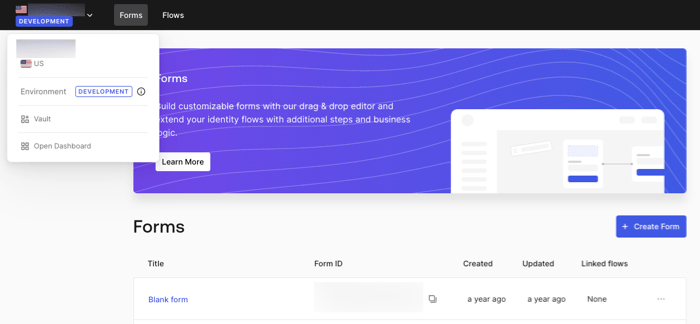
   <Frame>
     <img src="https://mintcdn.com/docs-staging-docs-event-stream-action-templates/jIClKhhRxa2ZEcOk/docs/images/cdy7uua7fh8z/1sPNPKO6nuEDCuiYGRWSur/d85dc616170eaf2d7d5f321750863ccf/vault-connection.png?fit=max&auto=format&n=jIClKhhRxa2ZEcOk&q=85&s=eb3768e07ff7302bcfbdecca574f4d9a" alt="Dashboard > Forms > Vault" data-og-width="700" width="700" data-og-height="324" height="324" data-path="docs/images/cdy7uua7fh8z/1sPNPKO6nuEDCuiYGRWSur/d85dc616170eaf2d7d5f321750863ccf/vault-connection.png" data-optimize="true" data-opv="3" srcset="https://mintcdn.com/docs-staging-docs-event-stream-action-templates/jIClKhhRxa2ZEcOk/docs/images/cdy7uua7fh8z/1sPNPKO6nuEDCuiYGRWSur/d85dc616170eaf2d7d5f321750863ccf/vault-connection.png?w=280&fit=max&auto=format&n=jIClKhhRxa2ZEcOk&q=85&s=13d6c4ce9f41c030967c08342fba7169 280w, https://mintcdn.com/docs-staging-docs-event-stream-action-templates/jIClKhhRxa2ZEcOk/docs/images/cdy7uua7fh8z/1sPNPKO6nuEDCuiYGRWSur/d85dc616170eaf2d7d5f321750863ccf/vault-connection.png?w=560&fit=max&auto=format&n=jIClKhhRxa2ZEcOk&q=85&s=cf61e5d545f1f4f8aa65a06ca89a6499 560w, https://mintcdn.com/docs-staging-docs-event-stream-action-templates/jIClKhhRxa2ZEcOk/docs/images/cdy7uua7fh8z/1sPNPKO6nuEDCuiYGRWSur/d85dc616170eaf2d7d5f321750863ccf/vault-connection.png?w=840&fit=max&auto=format&n=jIClKhhRxa2ZEcOk&q=85&s=450ad7dfbbb3492c8e8d08aa4d76841e 840w, https://mintcdn.com/docs-staging-docs-event-stream-action-templates/jIClKhhRxa2ZEcOk/docs/images/cdy7uua7fh8z/1sPNPKO6nuEDCuiYGRWSur/d85dc616170eaf2d7d5f321750863ccf/vault-connection.png?w=1100&fit=max&auto=format&n=jIClKhhRxa2ZEcOk&q=85&s=17c5d70443cded1bbf7182f0552cc158 1100w, https://mintcdn.com/docs-staging-docs-event-stream-action-templates/jIClKhhRxa2ZEcOk/docs/images/cdy7uua7fh8z/1sPNPKO6nuEDCuiYGRWSur/d85dc616170eaf2d7d5f321750863ccf/vault-connection.png?w=1650&fit=max&auto=format&n=jIClKhhRxa2ZEcOk&q=85&s=4df3a8925d9444baad2523feb3295c1b 1650w, https://mintcdn.com/docs-staging-docs-event-stream-action-templates/jIClKhhRxa2ZEcOk/docs/images/cdy7uua7fh8z/1sPNPKO6nuEDCuiYGRWSur/d85dc616170eaf2d7d5f321750863ccf/vault-connection.png?w=2500&fit=max&auto=format&n=jIClKhhRxa2ZEcOk&q=85&s=75890f8f7b678997bc579f3cef7fd872 2500w" />
   </Frame>
3. Select **Add Vault Connection**.
4. Select the desired action and **Continue**.
5. Add a vault **Connection name** and select **Continue**.
6. Enter the credentials.
   If you don't have the specific credentials, you can select **Create an empty connection** and add the credentials later. Empty connections have an orange icon indicating missing credentials.
7. select **Add Vault Connection**.

### Create vault connections from the flow editor

Add a vault connection from a flow action, for example: Twilio by following these steps:

1. Open the Flow editor by selecting **Auth0 Dashboard > Actions > Forms > Flows**
2. Select a flow and add a **Send SMS with Twilio** action.
3. From the **Vault connection** setting of the action, select the **+** Icon.

   <Frame>
     <img src="https://mintcdn.com/docs-staging-docs-event-stream-action-templates/wz-YwT5u85Wb5uJW/docs/images/cdy7uua7fh8z/1AsaznhRKxm5LZxPlcbfUw/10e5a8af700aab909f5b03fcd266da7e/twilio-vault-connection.png?fit=max&auto=format&n=wz-YwT5u85Wb5uJW&q=85&s=2a1ffd30a5737b137c852cdb059f4fb8" alt="Dashboard > Forms > Vault " data-og-width="1104" width="1104" data-og-height="191" height="191" data-path="docs/images/cdy7uua7fh8z/1AsaznhRKxm5LZxPlcbfUw/10e5a8af700aab909f5b03fcd266da7e/twilio-vault-connection.png" data-optimize="true" data-opv="3" srcset="https://mintcdn.com/docs-staging-docs-event-stream-action-templates/wz-YwT5u85Wb5uJW/docs/images/cdy7uua7fh8z/1AsaznhRKxm5LZxPlcbfUw/10e5a8af700aab909f5b03fcd266da7e/twilio-vault-connection.png?w=280&fit=max&auto=format&n=wz-YwT5u85Wb5uJW&q=85&s=5f86ab5206d1b732b9220a9b889653dd 280w, https://mintcdn.com/docs-staging-docs-event-stream-action-templates/wz-YwT5u85Wb5uJW/docs/images/cdy7uua7fh8z/1AsaznhRKxm5LZxPlcbfUw/10e5a8af700aab909f5b03fcd266da7e/twilio-vault-connection.png?w=560&fit=max&auto=format&n=wz-YwT5u85Wb5uJW&q=85&s=f3e7991a31d08f96ad0eccf9b910941f 560w, https://mintcdn.com/docs-staging-docs-event-stream-action-templates/wz-YwT5u85Wb5uJW/docs/images/cdy7uua7fh8z/1AsaznhRKxm5LZxPlcbfUw/10e5a8af700aab909f5b03fcd266da7e/twilio-vault-connection.png?w=840&fit=max&auto=format&n=wz-YwT5u85Wb5uJW&q=85&s=73ff3848efde30de8efe6a47289cfaf7 840w, https://mintcdn.com/docs-staging-docs-event-stream-action-templates/wz-YwT5u85Wb5uJW/docs/images/cdy7uua7fh8z/1AsaznhRKxm5LZxPlcbfUw/10e5a8af700aab909f5b03fcd266da7e/twilio-vault-connection.png?w=1100&fit=max&auto=format&n=wz-YwT5u85Wb5uJW&q=85&s=7ed7af01dbe54bf34ca9d9b9404c13a1 1100w, https://mintcdn.com/docs-staging-docs-event-stream-action-templates/wz-YwT5u85Wb5uJW/docs/images/cdy7uua7fh8z/1AsaznhRKxm5LZxPlcbfUw/10e5a8af700aab909f5b03fcd266da7e/twilio-vault-connection.png?w=1650&fit=max&auto=format&n=wz-YwT5u85Wb5uJW&q=85&s=ff3f1f04528d546188316942a22d0f88 1650w, https://mintcdn.com/docs-staging-docs-event-stream-action-templates/wz-YwT5u85Wb5uJW/docs/images/cdy7uua7fh8z/1AsaznhRKxm5LZxPlcbfUw/10e5a8af700aab909f5b03fcd266da7e/twilio-vault-connection.png?w=2500&fit=max&auto=format&n=wz-YwT5u85Wb5uJW&q=85&s=0fb82f653878d159b76bc3ae2c2e3e3e 2500w" />
   </Frame>
4. Add a vault **Connection name** and select **Continue**.
5. Enter the credentials.
   If you don't have the specific credentials, you can select **Create an empty connection** and add the credentials later. Empty connections have an orange icon indicating missing credentials.
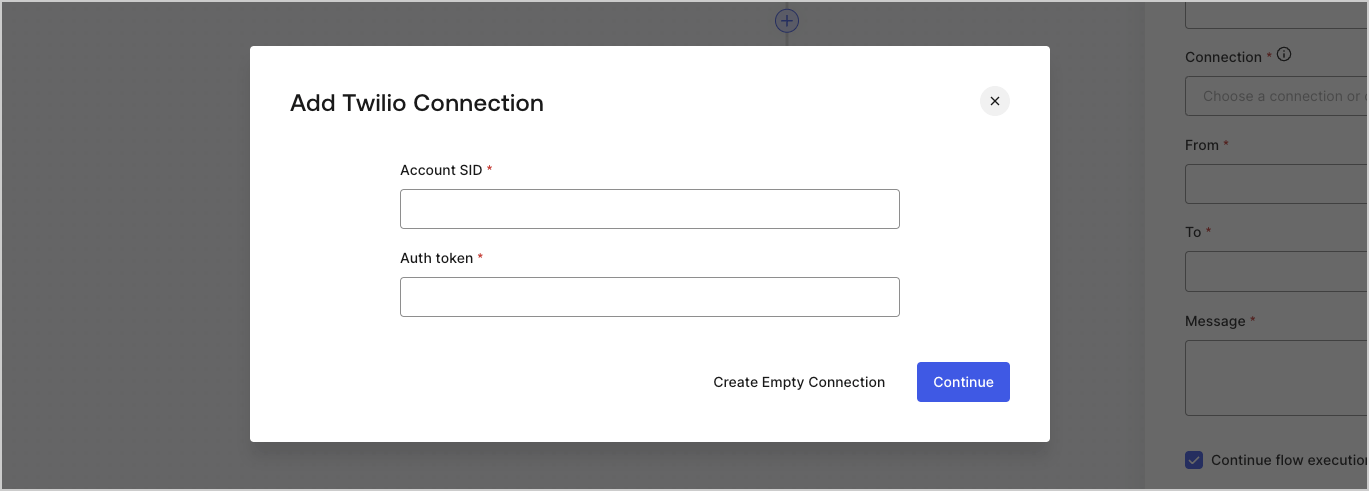
   <Frame>
     <img src="https://mintcdn.com/docs-staging-docs-event-stream-action-templates/jbtV9m9RubSTfp8S/docs/images/cdy7uua7fh8z/yobXanutPRCO3FWek8cOk/bc29e39fb8593cff35e2738234bfe6fe/twilio-vault-settings.png?fit=max&auto=format&n=jbtV9m9RubSTfp8S&q=85&s=1bf6477d98d58b94ebf948a7b3f6cfcc" alt="Dashboard > Forms > Vault > Twilio connection settings" data-og-width="1369" width="1369" data-og-height="491" height="491" data-path="docs/images/cdy7uua7fh8z/yobXanutPRCO3FWek8cOk/bc29e39fb8593cff35e2738234bfe6fe/twilio-vault-settings.png" data-optimize="true" data-opv="3" srcset="https://mintcdn.com/docs-staging-docs-event-stream-action-templates/jbtV9m9RubSTfp8S/docs/images/cdy7uua7fh8z/yobXanutPRCO3FWek8cOk/bc29e39fb8593cff35e2738234bfe6fe/twilio-vault-settings.png?w=280&fit=max&auto=format&n=jbtV9m9RubSTfp8S&q=85&s=6136c7b62a90d901b9ae2282f7a459cf 280w, https://mintcdn.com/docs-staging-docs-event-stream-action-templates/jbtV9m9RubSTfp8S/docs/images/cdy7uua7fh8z/yobXanutPRCO3FWek8cOk/bc29e39fb8593cff35e2738234bfe6fe/twilio-vault-settings.png?w=560&fit=max&auto=format&n=jbtV9m9RubSTfp8S&q=85&s=a6ca7ee1d6aada333272295400b5c44a 560w, https://mintcdn.com/docs-staging-docs-event-stream-action-templates/jbtV9m9RubSTfp8S/docs/images/cdy7uua7fh8z/yobXanutPRCO3FWek8cOk/bc29e39fb8593cff35e2738234bfe6fe/twilio-vault-settings.png?w=840&fit=max&auto=format&n=jbtV9m9RubSTfp8S&q=85&s=c5cab2cb133e6ac3643cf8cf068b2315 840w, https://mintcdn.com/docs-staging-docs-event-stream-action-templates/jbtV9m9RubSTfp8S/docs/images/cdy7uua7fh8z/yobXanutPRCO3FWek8cOk/bc29e39fb8593cff35e2738234bfe6fe/twilio-vault-settings.png?w=1100&fit=max&auto=format&n=jbtV9m9RubSTfp8S&q=85&s=e4b46f922d966bb7b6d20073bf955d41 1100w, https://mintcdn.com/docs-staging-docs-event-stream-action-templates/jbtV9m9RubSTfp8S/docs/images/cdy7uua7fh8z/yobXanutPRCO3FWek8cOk/bc29e39fb8593cff35e2738234bfe6fe/twilio-vault-settings.png?w=1650&fit=max&auto=format&n=jbtV9m9RubSTfp8S&q=85&s=eb03e29c2465134618b1a2b43180e812 1650w, https://mintcdn.com/docs-staging-docs-event-stream-action-templates/jbtV9m9RubSTfp8S/docs/images/cdy7uua7fh8z/yobXanutPRCO3FWek8cOk/bc29e39fb8593cff35e2738234bfe6fe/twilio-vault-settings.png?w=2500&fit=max&auto=format&n=jbtV9m9RubSTfp8S&q=85&s=ad64591b39ea6f3d6e625040005cf233 2500w" />
   </Frame>
6. Select **Add Vault Connection.**
