> ## Documentation Index
> Fetch the complete documentation index at: https://docs-staging-docs-event-stream-action-templates.mintlify.site/llms.txt
> Use this file to discover all available pages before exploring further.

> Learn how to configure a progressive profile form using Forms for Actions

# Use Cases: Configure a progressive profile form using Forms

<Card title="Before you start">
  1. Create a [Machine-to-Machine Application](/docs/get-started/auth0-overview/create-applications/machine-to-machine-apps) with the following scopes enabled:

  * `read:users`
  * `update:users`
  * `create:users`
  * `read:users_app_metadata`
  * `update:users_app_metadata`
  * `create:users_app_metadata`

  2. Add a [Vault connection](/docs/customize/forms/vault) using the M2M application credentials.
</Card>

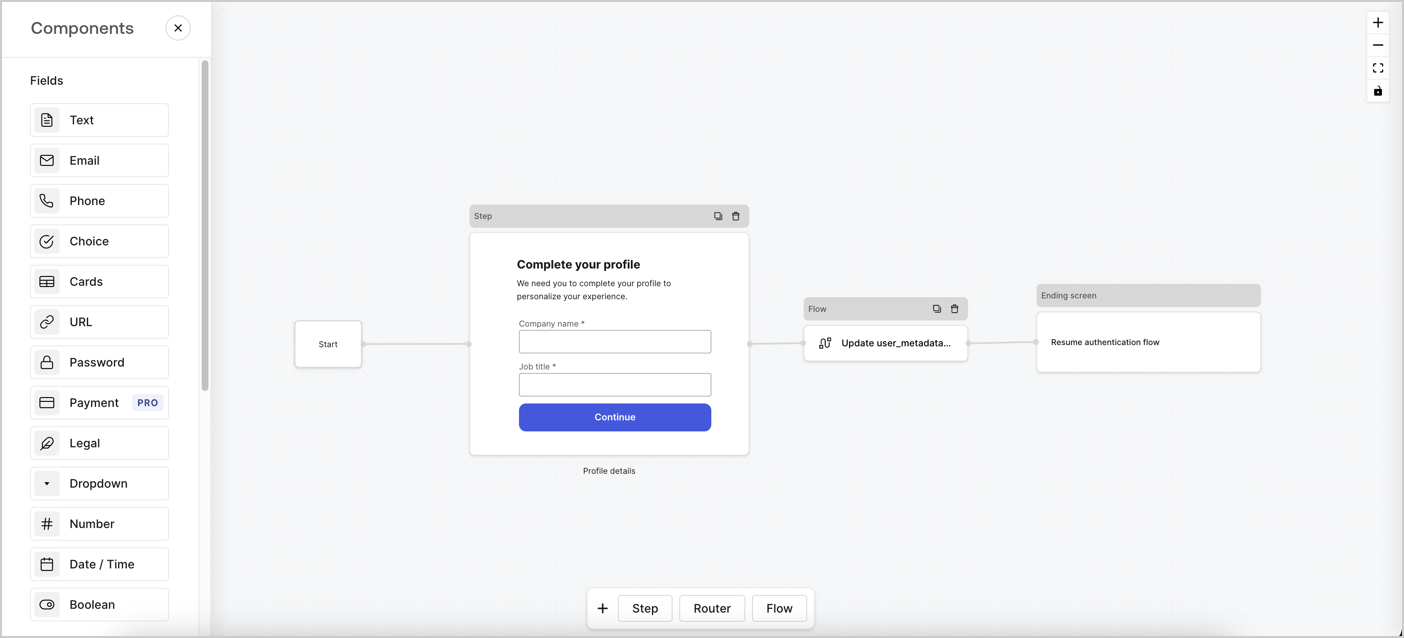
Forms for Actions allows you to create progressive profiling flows to decide when to prompt users to collect missing information, such as company name and job title, and store them as `user_metadata` attributes.
<Frame>
  <img src="https://mintcdn.com/docs-staging-docs-event-stream-action-templates/jbtV9m9RubSTfp8S/docs/images/cdy7uua7fh8z/xUx9YmnHvnAqL19JvNtNP/60dae88f893d4ebe8e3523421e960596/Progressive-profle-overview.png?fit=max&auto=format&n=jbtV9m9RubSTfp8S&q=85&s=455c6aed25a4b16f209ffc43bd7cc93b" alt="Dashboard > Actions > Forms > Form" data-og-width="1404" width="1404" data-og-height="638" height="638" data-path="docs/images/cdy7uua7fh8z/xUx9YmnHvnAqL19JvNtNP/60dae88f893d4ebe8e3523421e960596/Progressive-profle-overview.png" data-optimize="true" data-opv="3" srcset="https://mintcdn.com/docs-staging-docs-event-stream-action-templates/jbtV9m9RubSTfp8S/docs/images/cdy7uua7fh8z/xUx9YmnHvnAqL19JvNtNP/60dae88f893d4ebe8e3523421e960596/Progressive-profle-overview.png?w=280&fit=max&auto=format&n=jbtV9m9RubSTfp8S&q=85&s=9dbbaee168bded3a320777e75aa005ff 280w, https://mintcdn.com/docs-staging-docs-event-stream-action-templates/jbtV9m9RubSTfp8S/docs/images/cdy7uua7fh8z/xUx9YmnHvnAqL19JvNtNP/60dae88f893d4ebe8e3523421e960596/Progressive-profle-overview.png?w=560&fit=max&auto=format&n=jbtV9m9RubSTfp8S&q=85&s=b7f1635e622a4232698b086d357ad938 560w, https://mintcdn.com/docs-staging-docs-event-stream-action-templates/jbtV9m9RubSTfp8S/docs/images/cdy7uua7fh8z/xUx9YmnHvnAqL19JvNtNP/60dae88f893d4ebe8e3523421e960596/Progressive-profle-overview.png?w=840&fit=max&auto=format&n=jbtV9m9RubSTfp8S&q=85&s=d7cb2f14c5f32efb6bb70f9f4e57e823 840w, https://mintcdn.com/docs-staging-docs-event-stream-action-templates/jbtV9m9RubSTfp8S/docs/images/cdy7uua7fh8z/xUx9YmnHvnAqL19JvNtNP/60dae88f893d4ebe8e3523421e960596/Progressive-profle-overview.png?w=1100&fit=max&auto=format&n=jbtV9m9RubSTfp8S&q=85&s=756613490dcb25592ce4e859675ae8ee 1100w, https://mintcdn.com/docs-staging-docs-event-stream-action-templates/jbtV9m9RubSTfp8S/docs/images/cdy7uua7fh8z/xUx9YmnHvnAqL19JvNtNP/60dae88f893d4ebe8e3523421e960596/Progressive-profle-overview.png?w=1650&fit=max&auto=format&n=jbtV9m9RubSTfp8S&q=85&s=d6fda62600f198b6b40e1d637d24a292 1650w, https://mintcdn.com/docs-staging-docs-event-stream-action-templates/jbtV9m9RubSTfp8S/docs/images/cdy7uua7fh8z/xUx9YmnHvnAqL19JvNtNP/60dae88f893d4ebe8e3523421e960596/Progressive-profle-overview.png?w=2500&fit=max&auto=format&n=jbtV9m9RubSTfp8S&q=85&s=3fe5b8b5148a3cabcf370a1a8a71b4d1 2500w" />
</Frame>

The sections below outline how you can create a progressive profile form using nodes and flows, along with steps for adding your form to a [Post Login Action](/docs/customize/actions/explore-triggers/signup-and-login-triggers/login-trigger).

## Create a form from scratch

Follow these steps to create a form to gather information:

1. Open the Form editor by selecting **Auth0 Dashboard > Actions > Forms.**
2. Select **Create Form** > **Start from scratch**.

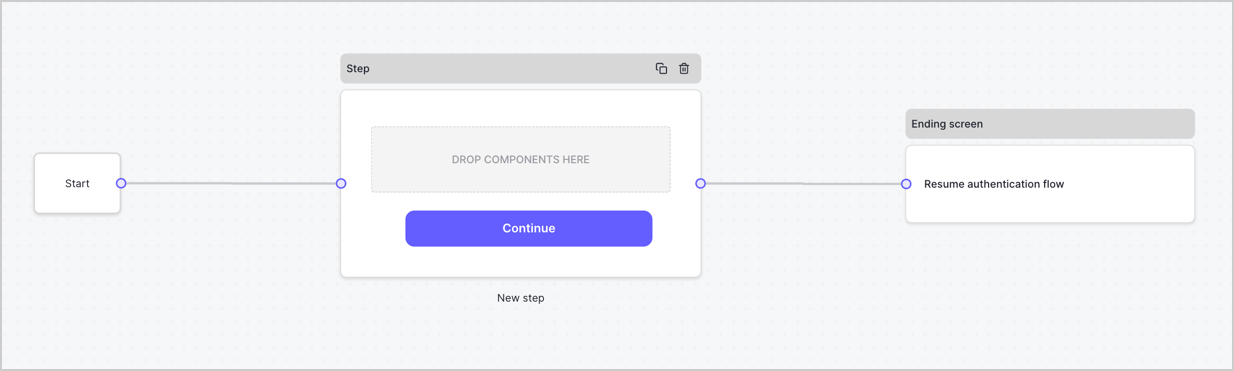
By default, a new form contains a Start node, a Step node, and an Ending screen node.
<Frame>
  <img src="https://mintcdn.com/docs-staging-docs-event-stream-action-templates/vucH_5_6S2dsLDJj/docs/images/cdy7uua7fh8z/2TZ9jSjgEcARFpULI6hz4R/a4319a1bd482f2ee5cc23100fdb2f42c/New-form-Forms-for-action-use-case.png?fit=max&auto=format&n=vucH_5_6S2dsLDJj&q=85&s=8c6e7ecb4d28181a486b9e244c976fc6" alt="Dashboard > Forms > Use Cases > Form" data-og-width="1234" width="1234" data-og-height="371" height="371" data-path="docs/images/cdy7uua7fh8z/2TZ9jSjgEcARFpULI6hz4R/a4319a1bd482f2ee5cc23100fdb2f42c/New-form-Forms-for-action-use-case.png" data-optimize="true" data-opv="3" srcset="https://mintcdn.com/docs-staging-docs-event-stream-action-templates/vucH_5_6S2dsLDJj/docs/images/cdy7uua7fh8z/2TZ9jSjgEcARFpULI6hz4R/a4319a1bd482f2ee5cc23100fdb2f42c/New-form-Forms-for-action-use-case.png?w=280&fit=max&auto=format&n=vucH_5_6S2dsLDJj&q=85&s=f55633372b236ee7eeab246ed5d2814f 280w, https://mintcdn.com/docs-staging-docs-event-stream-action-templates/vucH_5_6S2dsLDJj/docs/images/cdy7uua7fh8z/2TZ9jSjgEcARFpULI6hz4R/a4319a1bd482f2ee5cc23100fdb2f42c/New-form-Forms-for-action-use-case.png?w=560&fit=max&auto=format&n=vucH_5_6S2dsLDJj&q=85&s=4b2846d0298efbe21b3d6712e6bb56a7 560w, https://mintcdn.com/docs-staging-docs-event-stream-action-templates/vucH_5_6S2dsLDJj/docs/images/cdy7uua7fh8z/2TZ9jSjgEcARFpULI6hz4R/a4319a1bd482f2ee5cc23100fdb2f42c/New-form-Forms-for-action-use-case.png?w=840&fit=max&auto=format&n=vucH_5_6S2dsLDJj&q=85&s=7977d5dc9bcc5a14a8cac556ba8530ba 840w, https://mintcdn.com/docs-staging-docs-event-stream-action-templates/vucH_5_6S2dsLDJj/docs/images/cdy7uua7fh8z/2TZ9jSjgEcARFpULI6hz4R/a4319a1bd482f2ee5cc23100fdb2f42c/New-form-Forms-for-action-use-case.png?w=1100&fit=max&auto=format&n=vucH_5_6S2dsLDJj&q=85&s=8452bdd7bb99faf83bf39a7d5ef5c658 1100w, https://mintcdn.com/docs-staging-docs-event-stream-action-templates/vucH_5_6S2dsLDJj/docs/images/cdy7uua7fh8z/2TZ9jSjgEcARFpULI6hz4R/a4319a1bd482f2ee5cc23100fdb2f42c/New-form-Forms-for-action-use-case.png?w=1650&fit=max&auto=format&n=vucH_5_6S2dsLDJj&q=85&s=88e373596021b9d966f505845f6b2405 1650w, https://mintcdn.com/docs-staging-docs-event-stream-action-templates/vucH_5_6S2dsLDJj/docs/images/cdy7uua7fh8z/2TZ9jSjgEcARFpULI6hz4R/a4319a1bd482f2ee5cc23100fdb2f42c/New-form-Forms-for-action-use-case.png?w=2500&fit=max&auto=format&n=vucH_5_6S2dsLDJj&q=85&s=c8436a4213f3efe34e8c247bab9c00ae 2500w" />
</Frame>

### Configure the Step node

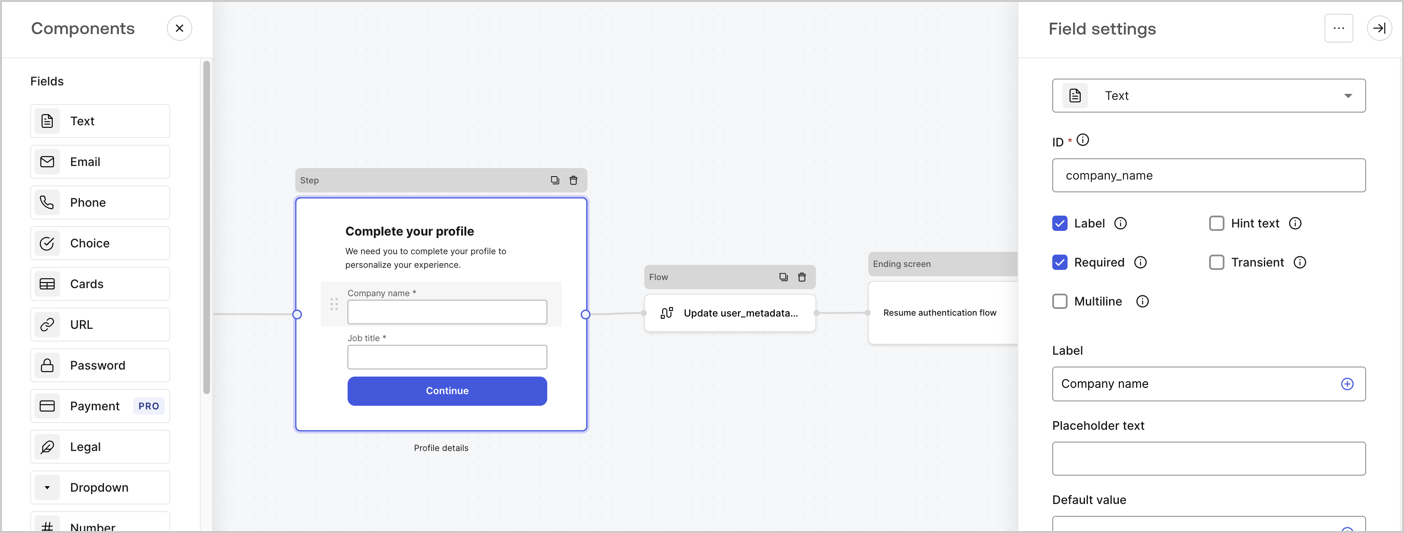
The Step node is the graphical interface visible to users. Add [Fields](/docs/customize/forms/nodes-and-components) to the Step node to collect the user's company name and job title values by following these steps:

1. Drag a **Rich text** field from the **Components menu** into the **Step** node.

   * **Rich text**: Enter a custom message.

     * **Example**: `Complete your profile! We need you to complete your profile to personalize your experience.`
   * Select **Save**.
2. Drag a **Text** field into the **Step** node.

   * **ID**: Enter `company_name`.
   * **Label**: Enable the checkbox.
   * **Label**: Enter `Company name`.
   * **Required**: Enable the checkbox.
   * Select **Save**.
3. Drag a **Text** field into the **Step** node.

   1. **ID**: Enter `job_title`.
   2. **Label**: Enter `Job title`.
   3. **Label**: Enable the checkbox.
   4. **Required**: Enable the checkbox.
   5. Select **Save**.
4. Select **Publish** to save.
<Frame>
  <img src="https://mintcdn.com/docs-staging-docs-event-stream-action-templates/1eoiXqB-LRUz0klM/docs/images/cdy7uua7fh8z/6H1lRzwKyYioQyQJ9MtIoM/aa248e92fc028a68a5b92ff361a11644/progressive-profile-step.png?fit=max&auto=format&n=1eoiXqB-LRUz0klM&q=85&s=0a9e49d1342f553adb9b71c906d7ba55" alt="Dashboard > Actions > Forms > Form > Step node" data-og-width="1404" width="1404" data-og-height="533" height="533" data-path="docs/images/cdy7uua7fh8z/6H1lRzwKyYioQyQJ9MtIoM/aa248e92fc028a68a5b92ff361a11644/progressive-profile-step.png" data-optimize="true" data-opv="3" srcset="https://mintcdn.com/docs-staging-docs-event-stream-action-templates/1eoiXqB-LRUz0klM/docs/images/cdy7uua7fh8z/6H1lRzwKyYioQyQJ9MtIoM/aa248e92fc028a68a5b92ff361a11644/progressive-profile-step.png?w=280&fit=max&auto=format&n=1eoiXqB-LRUz0klM&q=85&s=dd65b315ce0a17e9fa9103ac174c1c1a 280w, https://mintcdn.com/docs-staging-docs-event-stream-action-templates/1eoiXqB-LRUz0klM/docs/images/cdy7uua7fh8z/6H1lRzwKyYioQyQJ9MtIoM/aa248e92fc028a68a5b92ff361a11644/progressive-profile-step.png?w=560&fit=max&auto=format&n=1eoiXqB-LRUz0klM&q=85&s=176332847e900c83a067d28226e340dd 560w, https://mintcdn.com/docs-staging-docs-event-stream-action-templates/1eoiXqB-LRUz0klM/docs/images/cdy7uua7fh8z/6H1lRzwKyYioQyQJ9MtIoM/aa248e92fc028a68a5b92ff361a11644/progressive-profile-step.png?w=840&fit=max&auto=format&n=1eoiXqB-LRUz0klM&q=85&s=78543668d1b32c589bb93741a51fc5b6 840w, https://mintcdn.com/docs-staging-docs-event-stream-action-templates/1eoiXqB-LRUz0klM/docs/images/cdy7uua7fh8z/6H1lRzwKyYioQyQJ9MtIoM/aa248e92fc028a68a5b92ff361a11644/progressive-profile-step.png?w=1100&fit=max&auto=format&n=1eoiXqB-LRUz0klM&q=85&s=bda9dd66979ae3273d9c4392bce5fc96 1100w, https://mintcdn.com/docs-staging-docs-event-stream-action-templates/1eoiXqB-LRUz0klM/docs/images/cdy7uua7fh8z/6H1lRzwKyYioQyQJ9MtIoM/aa248e92fc028a68a5b92ff361a11644/progressive-profile-step.png?w=1650&fit=max&auto=format&n=1eoiXqB-LRUz0klM&q=85&s=9a7ad85902c4da88c11ed975e5e9959e 1650w, https://mintcdn.com/docs-staging-docs-event-stream-action-templates/1eoiXqB-LRUz0klM/docs/images/cdy7uua7fh8z/6H1lRzwKyYioQyQJ9MtIoM/aa248e92fc028a68a5b92ff361a11644/progressive-profile-step.png?w=2500&fit=max&auto=format&n=1eoiXqB-LRUz0klM&q=85&s=38a09adfac6ff3970735fc767413f186 2500w" />
</Frame>

### Configure the flow node

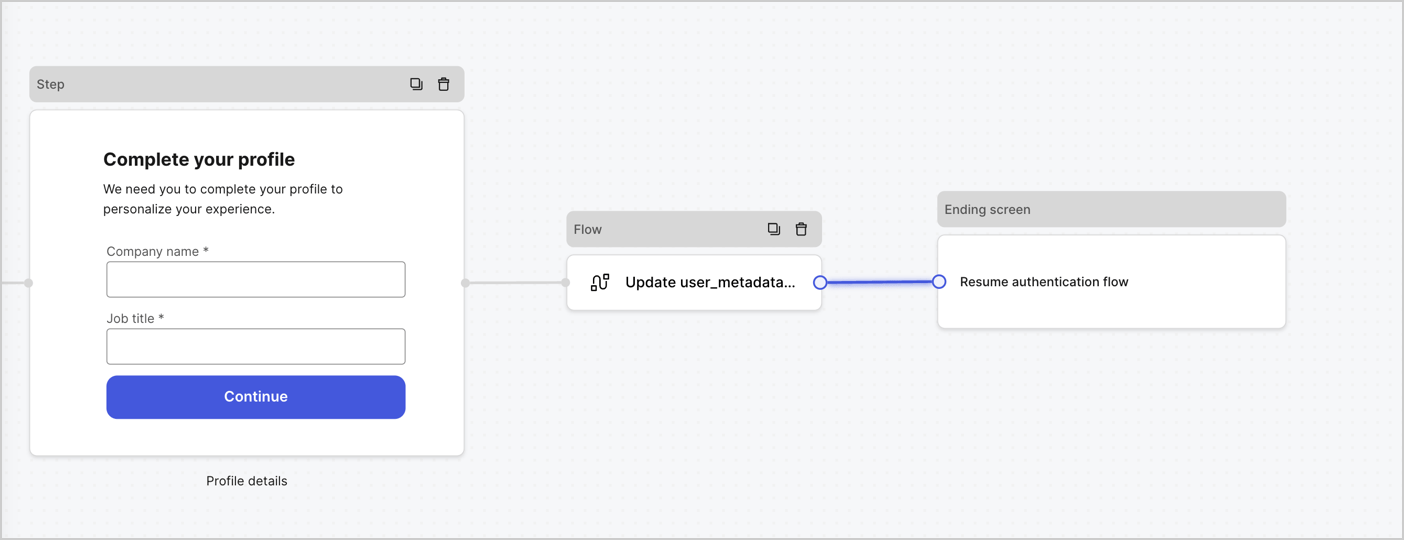
Add a **Flow** node after the **Step** node to update the `user_metadata` and resume the authentication flow by following these steps:

1. Select **Flow** from the bottom of the Form editor.
2. Remove the existing link between the **Step** and **Ending Screen** nodes.
3. Select the new **Flow** > **Click to add a flow** > **Create a new flow.**

   * Enter `Update user_metadata` in the **Name** field.
   * Select **Create**.
   * Select **Save**.
4. Link the **Flow** node to the **Step** and **Ending Screen** nodes as pictured below.
5. Select **Publish** to save.
<Frame>
  <img src="https://mintcdn.com/docs-staging-docs-event-stream-action-templates/SfAMet_KrWFk9wC4/docs/images/cdy7uua7fh8z/5C91DaWn4LGtJT9BF87ssu/095171d0c452a287c44bfde12fd6d13f/link-nodes.png?fit=max&auto=format&n=SfAMet_KrWFk9wC4&q=85&s=399aa2a64a214464cb37139acceb1bf4" alt="Dashboard > Actions > Forms > Form" data-og-width="1404" width="1404" data-og-height="540" height="540" data-path="docs/images/cdy7uua7fh8z/5C91DaWn4LGtJT9BF87ssu/095171d0c452a287c44bfde12fd6d13f/link-nodes.png" data-optimize="true" data-opv="3" srcset="https://mintcdn.com/docs-staging-docs-event-stream-action-templates/SfAMet_KrWFk9wC4/docs/images/cdy7uua7fh8z/5C91DaWn4LGtJT9BF87ssu/095171d0c452a287c44bfde12fd6d13f/link-nodes.png?w=280&fit=max&auto=format&n=SfAMet_KrWFk9wC4&q=85&s=2c58559e1d14a4b1924b524e1ab5b30f 280w, https://mintcdn.com/docs-staging-docs-event-stream-action-templates/SfAMet_KrWFk9wC4/docs/images/cdy7uua7fh8z/5C91DaWn4LGtJT9BF87ssu/095171d0c452a287c44bfde12fd6d13f/link-nodes.png?w=560&fit=max&auto=format&n=SfAMet_KrWFk9wC4&q=85&s=2b836cc2ab783f5c2d6e05900e000d58 560w, https://mintcdn.com/docs-staging-docs-event-stream-action-templates/SfAMet_KrWFk9wC4/docs/images/cdy7uua7fh8z/5C91DaWn4LGtJT9BF87ssu/095171d0c452a287c44bfde12fd6d13f/link-nodes.png?w=840&fit=max&auto=format&n=SfAMet_KrWFk9wC4&q=85&s=abdcdb6844a6ccbfdd3594c5404bfc15 840w, https://mintcdn.com/docs-staging-docs-event-stream-action-templates/SfAMet_KrWFk9wC4/docs/images/cdy7uua7fh8z/5C91DaWn4LGtJT9BF87ssu/095171d0c452a287c44bfde12fd6d13f/link-nodes.png?w=1100&fit=max&auto=format&n=SfAMet_KrWFk9wC4&q=85&s=fbe436fc3db30b00f0b8cdc5e62d1845 1100w, https://mintcdn.com/docs-staging-docs-event-stream-action-templates/SfAMet_KrWFk9wC4/docs/images/cdy7uua7fh8z/5C91DaWn4LGtJT9BF87ssu/095171d0c452a287c44bfde12fd6d13f/link-nodes.png?w=1650&fit=max&auto=format&n=SfAMet_KrWFk9wC4&q=85&s=d650598402d18c346fa0126feb4c7626 1650w, https://mintcdn.com/docs-staging-docs-event-stream-action-templates/SfAMet_KrWFk9wC4/docs/images/cdy7uua7fh8z/5C91DaWn4LGtJT9BF87ssu/095171d0c452a287c44bfde12fd6d13f/link-nodes.png?w=2500&fit=max&auto=format&n=SfAMet_KrWFk9wC4&q=85&s=744dc1c2bc226291790aab1d2d677344 2500w" />
</Frame>

Add an Auth0 Update user action to the flow by following these steps:

1. Select the **Update user\_metadata** flow, then select the **Edit Flow** to open the Flow editor in a new tab.
2. Below the **Start** action, select the **+** icon to add an **Update user** action. Complete the fields below, then select **Save** to continue.

   * **Connection**: Select from the dropdown the Vault connection to your M2M application.

   * **User ID**: Enter `{{context.user.user_id}}`.

   * **Body**: Copy and paste the following code to update the user\_metadata with `job_title` and `company_name` properties.

     ```json lines theme={null}
     {
        "user_metadata": {
           "job_title": "{{fields.job_title}}",
           "company_name": "{{fields.company_name}}"
        }
     }
     ```

   * Select **Save**.
3. Select **Publish** to save.

<Frame>
  <img src="https://mintcdn.com/docs-staging-docs-event-stream-action-templates/1hRtDTIU3j1_StEt/docs/images/cdy7uua7fh8z/65Jx4W5oIZJyyvA8z4HqIx/0661b1a8ca6361c54fc4fef07ba59f0b/update-user.png?fit=max&auto=format&n=1hRtDTIU3j1_StEt&q=85&s=5ea81e4a88e319e0e521d908510d2e88" alt="Dashboard > Actions > Forms > Flows" data-og-width="1404" width="1404" data-og-height="244" height="244" data-path="docs/images/cdy7uua7fh8z/65Jx4W5oIZJyyvA8z4HqIx/0661b1a8ca6361c54fc4fef07ba59f0b/update-user.png" data-optimize="true" data-opv="3" srcset="https://mintcdn.com/docs-staging-docs-event-stream-action-templates/1hRtDTIU3j1_StEt/docs/images/cdy7uua7fh8z/65Jx4W5oIZJyyvA8z4HqIx/0661b1a8ca6361c54fc4fef07ba59f0b/update-user.png?w=280&fit=max&auto=format&n=1hRtDTIU3j1_StEt&q=85&s=717884681c662d2887dbd4fe0be5b71c 280w, https://mintcdn.com/docs-staging-docs-event-stream-action-templates/1hRtDTIU3j1_StEt/docs/images/cdy7uua7fh8z/65Jx4W5oIZJyyvA8z4HqIx/0661b1a8ca6361c54fc4fef07ba59f0b/update-user.png?w=560&fit=max&auto=format&n=1hRtDTIU3j1_StEt&q=85&s=a47228c1e610fe7e2dd0668252e2a3c0 560w, https://mintcdn.com/docs-staging-docs-event-stream-action-templates/1hRtDTIU3j1_StEt/docs/images/cdy7uua7fh8z/65Jx4W5oIZJyyvA8z4HqIx/0661b1a8ca6361c54fc4fef07ba59f0b/update-user.png?w=840&fit=max&auto=format&n=1hRtDTIU3j1_StEt&q=85&s=54bfe8eafc23d441b3aef1384a987b2f 840w, https://mintcdn.com/docs-staging-docs-event-stream-action-templates/1hRtDTIU3j1_StEt/docs/images/cdy7uua7fh8z/65Jx4W5oIZJyyvA8z4HqIx/0661b1a8ca6361c54fc4fef07ba59f0b/update-user.png?w=1100&fit=max&auto=format&n=1hRtDTIU3j1_StEt&q=85&s=577842debd6b6973249087eaacba1b34 1100w, https://mintcdn.com/docs-staging-docs-event-stream-action-templates/1hRtDTIU3j1_StEt/docs/images/cdy7uua7fh8z/65Jx4W5oIZJyyvA8z4HqIx/0661b1a8ca6361c54fc4fef07ba59f0b/update-user.png?w=1650&fit=max&auto=format&n=1hRtDTIU3j1_StEt&q=85&s=8dbeb3125839c6f85a2a581f14ed1ac8 1650w, https://mintcdn.com/docs-staging-docs-event-stream-action-templates/1hRtDTIU3j1_StEt/docs/images/cdy7uua7fh8z/65Jx4W5oIZJyyvA8z4HqIx/0661b1a8ca6361c54fc4fef07ba59f0b/update-user.png?w=2500&fit=max&auto=format&n=1hRtDTIU3j1_StEt&q=85&s=a73314b09fcb16b97c0ce9e3465d5b81 2500w" />
</Frame>

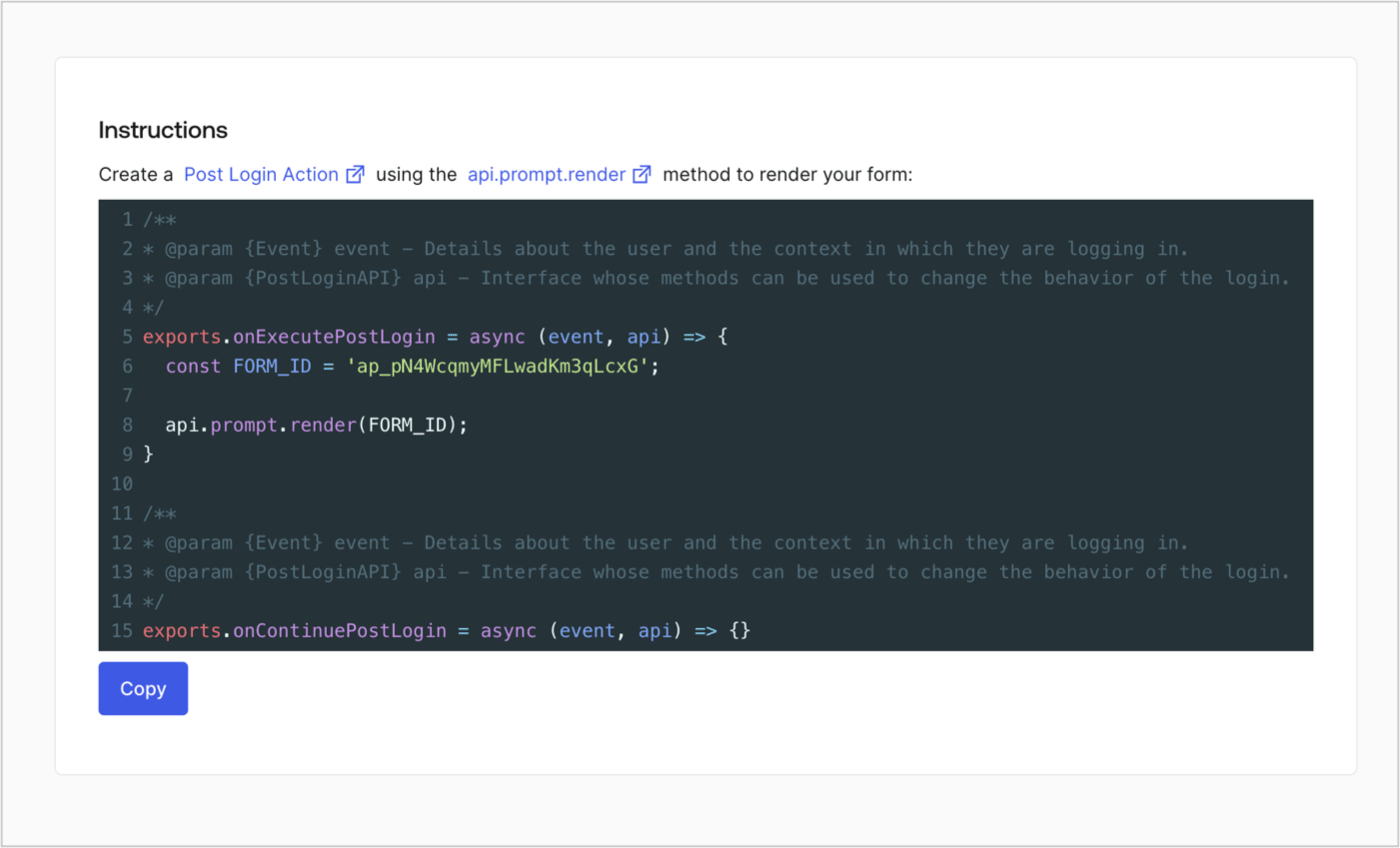
### Retrieve the form render code

Retrieve the form render code to visually render the form with a custom Post Login Action by following these steps:

* From the Form editor, select **`<> Render`**.
* Select **Copy**.
<Frame>
  <img src="https://mintcdn.com/docs-staging-docs-event-stream-action-templates/jIClKhhRxa2ZEcOk/docs/images/cdy7uua7fh8z/2EIUzc539sq9lwoTKbjoJv/496a864c0fc44a782c9cadca119dbfb0/embed.png?fit=max&auto=format&n=jIClKhhRxa2ZEcOk&q=85&s=a71540b6741b575a5bcc1dafbc72f124" alt="Dashboard > Actions > Forms > Form > Embed" data-og-width="1400" width="1400" data-og-height="848" height="848" data-path="docs/images/cdy7uua7fh8z/2EIUzc539sq9lwoTKbjoJv/496a864c0fc44a782c9cadca119dbfb0/embed.png" data-optimize="true" data-opv="3" srcset="https://mintcdn.com/docs-staging-docs-event-stream-action-templates/jIClKhhRxa2ZEcOk/docs/images/cdy7uua7fh8z/2EIUzc539sq9lwoTKbjoJv/496a864c0fc44a782c9cadca119dbfb0/embed.png?w=280&fit=max&auto=format&n=jIClKhhRxa2ZEcOk&q=85&s=1811e055b3360d7c805b4df9ccfa0daa 280w, https://mintcdn.com/docs-staging-docs-event-stream-action-templates/jIClKhhRxa2ZEcOk/docs/images/cdy7uua7fh8z/2EIUzc539sq9lwoTKbjoJv/496a864c0fc44a782c9cadca119dbfb0/embed.png?w=560&fit=max&auto=format&n=jIClKhhRxa2ZEcOk&q=85&s=df3e091724b09e3a778553626fea3a5d 560w, https://mintcdn.com/docs-staging-docs-event-stream-action-templates/jIClKhhRxa2ZEcOk/docs/images/cdy7uua7fh8z/2EIUzc539sq9lwoTKbjoJv/496a864c0fc44a782c9cadca119dbfb0/embed.png?w=840&fit=max&auto=format&n=jIClKhhRxa2ZEcOk&q=85&s=c916ad5170c31ad9509c34095941286d 840w, https://mintcdn.com/docs-staging-docs-event-stream-action-templates/jIClKhhRxa2ZEcOk/docs/images/cdy7uua7fh8z/2EIUzc539sq9lwoTKbjoJv/496a864c0fc44a782c9cadca119dbfb0/embed.png?w=1100&fit=max&auto=format&n=jIClKhhRxa2ZEcOk&q=85&s=74f5c2ac71bd01cf994f7175ab422d42 1100w, https://mintcdn.com/docs-staging-docs-event-stream-action-templates/jIClKhhRxa2ZEcOk/docs/images/cdy7uua7fh8z/2EIUzc539sq9lwoTKbjoJv/496a864c0fc44a782c9cadca119dbfb0/embed.png?w=1650&fit=max&auto=format&n=jIClKhhRxa2ZEcOk&q=85&s=bb2829243e9ac391119f9d7f4702640f 1650w, https://mintcdn.com/docs-staging-docs-event-stream-action-templates/jIClKhhRxa2ZEcOk/docs/images/cdy7uua7fh8z/2EIUzc539sq9lwoTKbjoJv/496a864c0fc44a782c9cadca119dbfb0/embed.png?w=2500&fit=max&auto=format&n=jIClKhhRxa2ZEcOk&q=85&s=d2439a5949ea683ec2c320ad8f63c72d 2500w" />
</Frame>

## Create a Post Login Action

Create a post-login Action to render your form by following these steps:

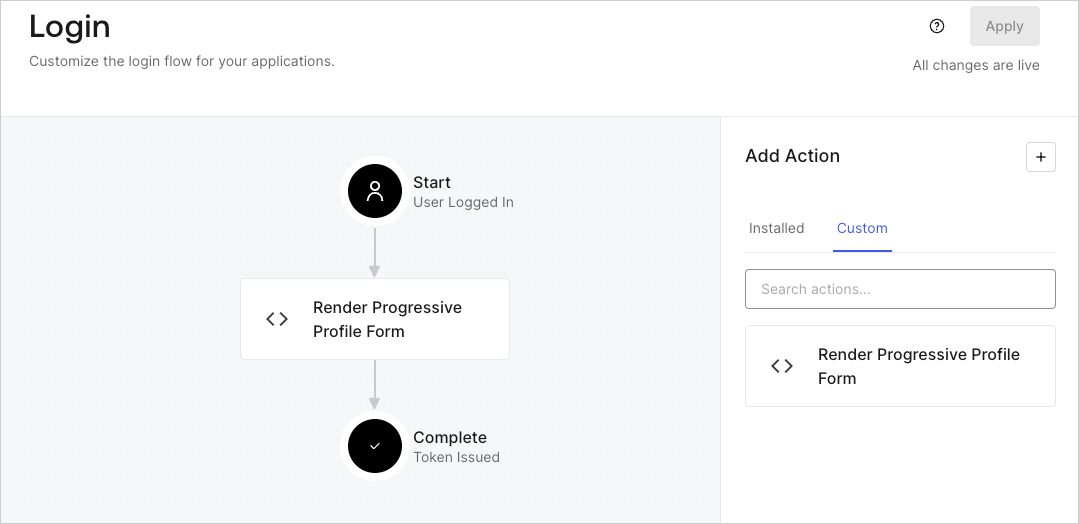
1. Navigate to **Auth0 Dashboard > Actions > Flows > Login.**
2. Select the **+** icon and select **Build from scratch**:

   * **Name**: Enter `Render Progressive Profile Form`.
   * **Trigger**: Select `Login / Post Login`.
   * **Runtime**: Select the recommended version.
3. Select **Create**.

To configure the post-login Action:

1. Delete the existing code from the Code editor.
2. Paste the form embed code into the Code editor.
3. Edit the code to define the conditional logic that will render the form.

   ```javascript lines theme={null}
   /**
   * @param {Event} event - Details about the user and the context in which they are logging in.
   * @param {PostLoginAPI} api - Interface whose methods can be used to change the behavior of the login.
   */
   exports.onExecutePostLogin = async (event, api) => {
     const FORM_ID = 'REPLACE_WITH_YOUR_FORM_ID';

     if (
       event.stats.logins_count > 2 &&
       !event.user.user_metadata.company_name &&
       !event.user.user_metadata.job_title
     ) {
       api.prompt.render(FORM_ID);
     }
   }

   exports.onContinuePostLogin = async (event, api) => { }
   ```

   <Callout icon="file-lines" color="#0EA5E9" iconType="regular">
     The example code above will render the form when a user has a login count > 2 and is missing the user metadata company\_name and job\_title properties.
   </Callout>
4. Select **Deploy.**
5. Drag and Drop the **Render Progressive Profile Form** Action to the **Login** flow.
   <Frame>
     <img src="https://mintcdn.com/docs-staging-docs-event-stream-action-templates/wz-YwT5u85Wb5uJW/docs/images/cdy7uua7fh8z/1QjjZdpTqTxx012UDN4xk9/99fba5ef4068a5688f1762eea7f42976/renderprogessiveprofile.png?fit=max&auto=format&n=wz-YwT5u85Wb5uJW&q=85&s=a02d71d57b69f023e67b02939a99c18f" alt="Dashboard > Forms > Use Cases Progressive Profile Login Action" data-og-width="1079" width="1079" data-og-height="524" height="524" data-path="docs/images/cdy7uua7fh8z/1QjjZdpTqTxx012UDN4xk9/99fba5ef4068a5688f1762eea7f42976/renderprogessiveprofile.png" data-optimize="true" data-opv="3" srcset="https://mintcdn.com/docs-staging-docs-event-stream-action-templates/wz-YwT5u85Wb5uJW/docs/images/cdy7uua7fh8z/1QjjZdpTqTxx012UDN4xk9/99fba5ef4068a5688f1762eea7f42976/renderprogessiveprofile.png?w=280&fit=max&auto=format&n=wz-YwT5u85Wb5uJW&q=85&s=e65ee3282f531e5dd8e98bf39f1ae682 280w, https://mintcdn.com/docs-staging-docs-event-stream-action-templates/wz-YwT5u85Wb5uJW/docs/images/cdy7uua7fh8z/1QjjZdpTqTxx012UDN4xk9/99fba5ef4068a5688f1762eea7f42976/renderprogessiveprofile.png?w=560&fit=max&auto=format&n=wz-YwT5u85Wb5uJW&q=85&s=c934a68677810903e41ddb93259d4d47 560w, https://mintcdn.com/docs-staging-docs-event-stream-action-templates/wz-YwT5u85Wb5uJW/docs/images/cdy7uua7fh8z/1QjjZdpTqTxx012UDN4xk9/99fba5ef4068a5688f1762eea7f42976/renderprogessiveprofile.png?w=840&fit=max&auto=format&n=wz-YwT5u85Wb5uJW&q=85&s=00c2c47d829d39da42023dbf46ec40cb 840w, https://mintcdn.com/docs-staging-docs-event-stream-action-templates/wz-YwT5u85Wb5uJW/docs/images/cdy7uua7fh8z/1QjjZdpTqTxx012UDN4xk9/99fba5ef4068a5688f1762eea7f42976/renderprogessiveprofile.png?w=1100&fit=max&auto=format&n=wz-YwT5u85Wb5uJW&q=85&s=06a47e51b81c7bd8ef496948982c86c8 1100w, https://mintcdn.com/docs-staging-docs-event-stream-action-templates/wz-YwT5u85Wb5uJW/docs/images/cdy7uua7fh8z/1QjjZdpTqTxx012UDN4xk9/99fba5ef4068a5688f1762eea7f42976/renderprogessiveprofile.png?w=1650&fit=max&auto=format&n=wz-YwT5u85Wb5uJW&q=85&s=6edc0be5fb2a9e2fc5d9de5e3496695d 1650w, https://mintcdn.com/docs-staging-docs-event-stream-action-templates/wz-YwT5u85Wb5uJW/docs/images/cdy7uua7fh8z/1QjjZdpTqTxx012UDN4xk9/99fba5ef4068a5688f1762eea7f42976/renderprogessiveprofile.png?w=2500&fit=max&auto=format&n=wz-YwT5u85Wb5uJW&q=85&s=00f34098cb2ab72d2038e985c2612831 2500w" />
   </Frame>
6. Select **Apply**.

### Test implementation

Test the implementation by following these steps:

1. Log in with an existing user whose login count is greater than 2 and their `user_metadata` attributes `company_name` and `job_title` have no values.
2. The post-login action in the Login flow will render the form and prompt for the information.
3. Select **Auth0 Dashboard > User Management > Users,** locate the user and verify that the `user_metadata` attributes `company_name` and `job_title` contain information.
