> ## Documentation Index
> Fetch the complete documentation index at: https://docs-staging-docs-event-stream-action-templates.mintlify.site/llms.txt
> Use this file to discover all available pages before exploring further.
> Learn about the Account Link extension, which allows users with two accounts with the same email to be prompted to link them.
# Account Link Extension
The Account Link extension prompts users that may have created a second account by mistake to link the new account with their old one upon their first login. The user may choose to either link the two accounts or keep them separate if creating the second account was intentional.
## How does the extension work?
The extension triggers after authentication when the email address of the user who authenticated matches the email address of an existing user account attached to a different identity provider.
For example, if a user logs in with their Facebook account using the email `john@acme.com` and then later authenticates with Google using the same email address, they will be prompted with a page similar to the following:
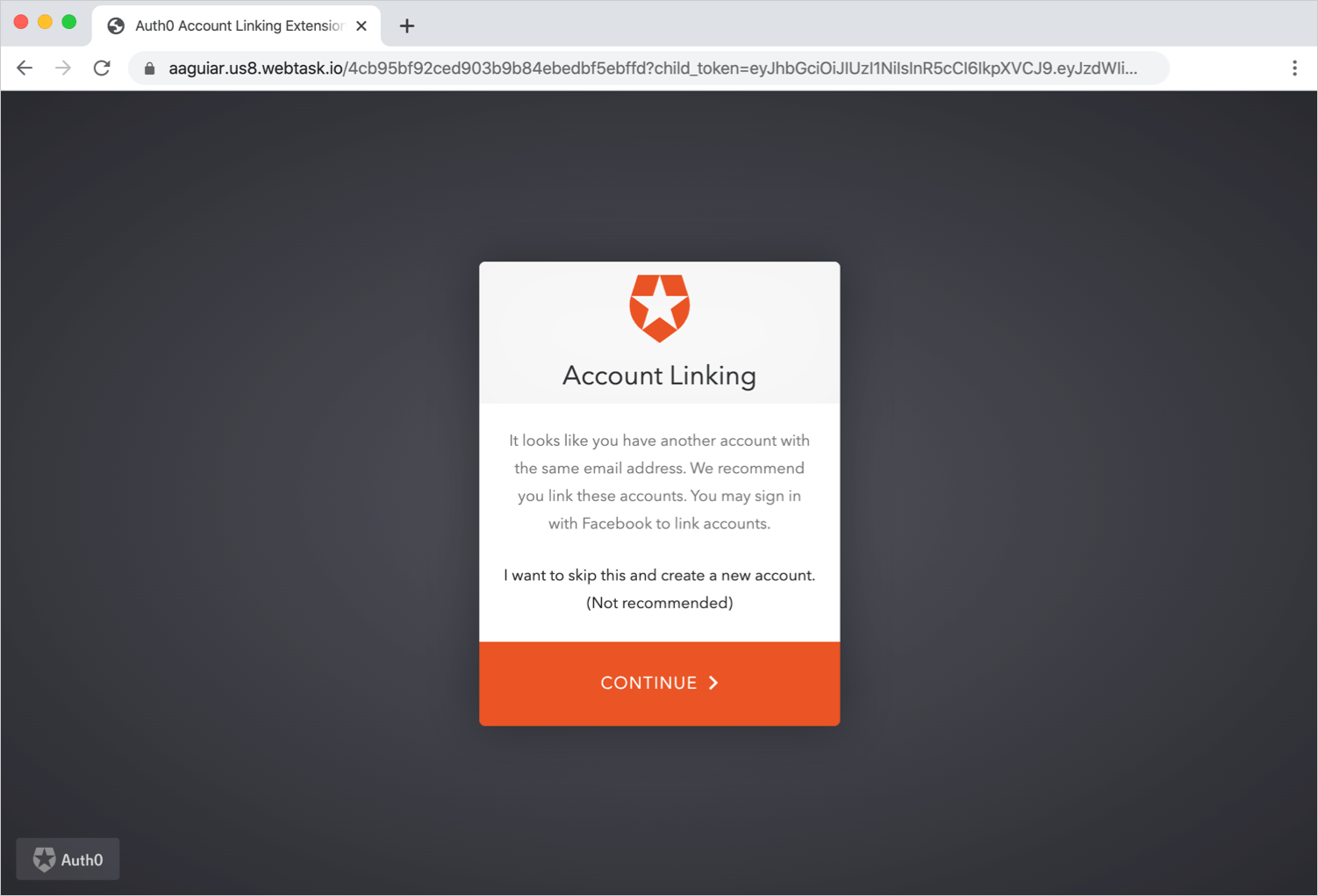 The extension does not automatically link users with the same email, even if emails are verified, because verified emails are not enough evidence to prove that the user can currently authenticate to both accounts.
If the user selects **Continue**, they will be redirected to Facebook to authenticate. If the user is already logged in, Facebook will redirect back to the application, and the user will be automatically linked. If they are not logged in, they will be prompted to authenticate with their Facebook credentials. After Facebook redirects back to Auth0, the Facebook account will be linked with the Google account. This process ensures that the user has the credentials to authenticate to both accounts, which allows the accounts to be linked safely and correctly.
### Limitations
Note that the extension does not support passwordless connections, flows started using device authorization, or the SAML and WS-federation protocols. For connections not supported by the Account Link extension, see [Account Linking – Server-Side Implementation](/docs/manage-users/user-accounts/user-account-linking/suggested-account-linking-server-side-implementation) and [User Initiated Account Linking – Client-Side Implementation](/docs/manage-users/user-accounts/user-account-linking/user-initiated-account-linking-client-side-implementation) as alternative options.
## Install and configure extension
Go to [Auth0 Dashboard > Extensions](https://manage.auth0.com/#/extensions), and select **Auth0 Account Link**. The **Install Extension** window opens.
The extension will create a new application named `auth0-account-link` to use internally and a new rule to redirect users to the extension if they login with a new account that has an email matching an existing account.
If you rotate your application client secret associated with the Account Link Extension, you need to uninstall the extension, reinstall, and reconfigure with the new application secret.
To test, create a React Sample Single Page Application with [this project](https://github.com/auth0-samples/auth0-link-accounts-sample.git).
Open the `auth_config.json` file in your text editor and update the domain and `client_id` with your details.
Add `http://localhost:3000` in the “Allowed Callback URLs”, “Allowed Logout URLs”, “Allowed Web Origins” field.
Log in to `http://localhost:3000` and select a connection. Enter an email address that is already associated with a verified user with a different type of connection.
To link the account, select **Continue.**
Once logged in, check the user details on the Auth0 dashboard, we can see the user accounts are linked.
## Set up extension
### Change application name
We recommend changing the name of the default application used for the extension to something descriptive and easy to read for your customers, like `Account Linking`, since it will appear on the **Login Page** when they authenticate their primary account.
### Update the login page
By default, Auth0's Universal Login allows a user to both log in and sign up, as one may expect. However, when the account linking asks you to authenticate your primary account in order to link it with the new account, providing a signup option can be confusing for users.
To learn more about what you can do with Universal Login, see [Auth0 Universal Login](/docs/authenticate/login/auth0-universal-login).
To prevent this, we send a query parameter to let the login page know that it should hide the **Sign Up** option. For this query parameter to take effect, however, you must customize the login page.
1. Go to [Auth0 Dashboard > Branding > Universal Login](https://manage.auth0.com/#/login_settings), and select the **Login** view.
2. Enable the **Customize Login Page** switch to enable the custom editor below. In the editor, we're going to add a new line to the Lock config.
3. Toward the bottom of the object configuring the Lock widget, add the following line (after the `closable` setting):
`allowSignUp: !config.extraParams.prevent_sign_up,`
The extension does not automatically link users with the same email, even if emails are verified, because verified emails are not enough evidence to prove that the user can currently authenticate to both accounts.
If the user selects **Continue**, they will be redirected to Facebook to authenticate. If the user is already logged in, Facebook will redirect back to the application, and the user will be automatically linked. If they are not logged in, they will be prompted to authenticate with their Facebook credentials. After Facebook redirects back to Auth0, the Facebook account will be linked with the Google account. This process ensures that the user has the credentials to authenticate to both accounts, which allows the accounts to be linked safely and correctly.
### Limitations
Note that the extension does not support passwordless connections, flows started using device authorization, or the SAML and WS-federation protocols. For connections not supported by the Account Link extension, see [Account Linking – Server-Side Implementation](/docs/manage-users/user-accounts/user-account-linking/suggested-account-linking-server-side-implementation) and [User Initiated Account Linking – Client-Side Implementation](/docs/manage-users/user-accounts/user-account-linking/user-initiated-account-linking-client-side-implementation) as alternative options.
## Install and configure extension
Go to [Auth0 Dashboard > Extensions](https://manage.auth0.com/#/extensions), and select **Auth0 Account Link**. The **Install Extension** window opens.
The extension will create a new application named `auth0-account-link` to use internally and a new rule to redirect users to the extension if they login with a new account that has an email matching an existing account.
If you rotate your application client secret associated with the Account Link Extension, you need to uninstall the extension, reinstall, and reconfigure with the new application secret.
To test, create a React Sample Single Page Application with [this project](https://github.com/auth0-samples/auth0-link-accounts-sample.git).
Open the `auth_config.json` file in your text editor and update the domain and `client_id` with your details.
Add `http://localhost:3000` in the “Allowed Callback URLs”, “Allowed Logout URLs”, “Allowed Web Origins” field.
Log in to `http://localhost:3000` and select a connection. Enter an email address that is already associated with a verified user with a different type of connection.
To link the account, select **Continue.**
Once logged in, check the user details on the Auth0 dashboard, we can see the user accounts are linked.
## Set up extension
### Change application name
We recommend changing the name of the default application used for the extension to something descriptive and easy to read for your customers, like `Account Linking`, since it will appear on the **Login Page** when they authenticate their primary account.
### Update the login page
By default, Auth0's Universal Login allows a user to both log in and sign up, as one may expect. However, when the account linking asks you to authenticate your primary account in order to link it with the new account, providing a signup option can be confusing for users.
To learn more about what you can do with Universal Login, see [Auth0 Universal Login](/docs/authenticate/login/auth0-universal-login).
To prevent this, we send a query parameter to let the login page know that it should hide the **Sign Up** option. For this query parameter to take effect, however, you must customize the login page.
1. Go to [Auth0 Dashboard > Branding > Universal Login](https://manage.auth0.com/#/login_settings), and select the **Login** view.
2. Enable the **Customize Login Page** switch to enable the custom editor below. In the editor, we're going to add a new line to the Lock config.
3. Toward the bottom of the object configuring the Lock widget, add the following line (after the `closable` setting):
`allowSignUp: !config.extraParams.prevent_sign_up,`
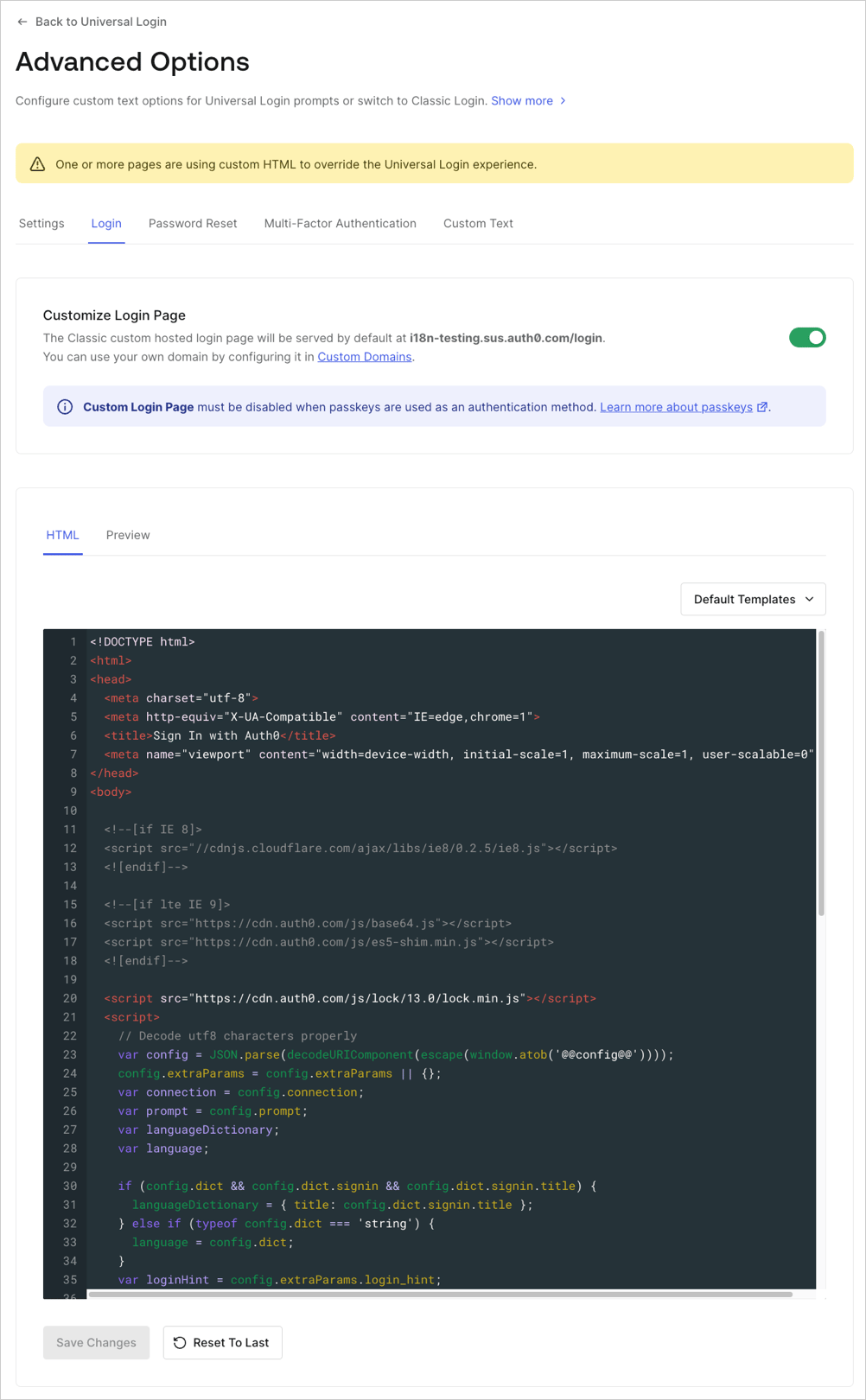 4. Save your changes and attempt to link an account. You'll notice that the **Sign Up** option is no longer present and your users are safe from an extra level of confusion.
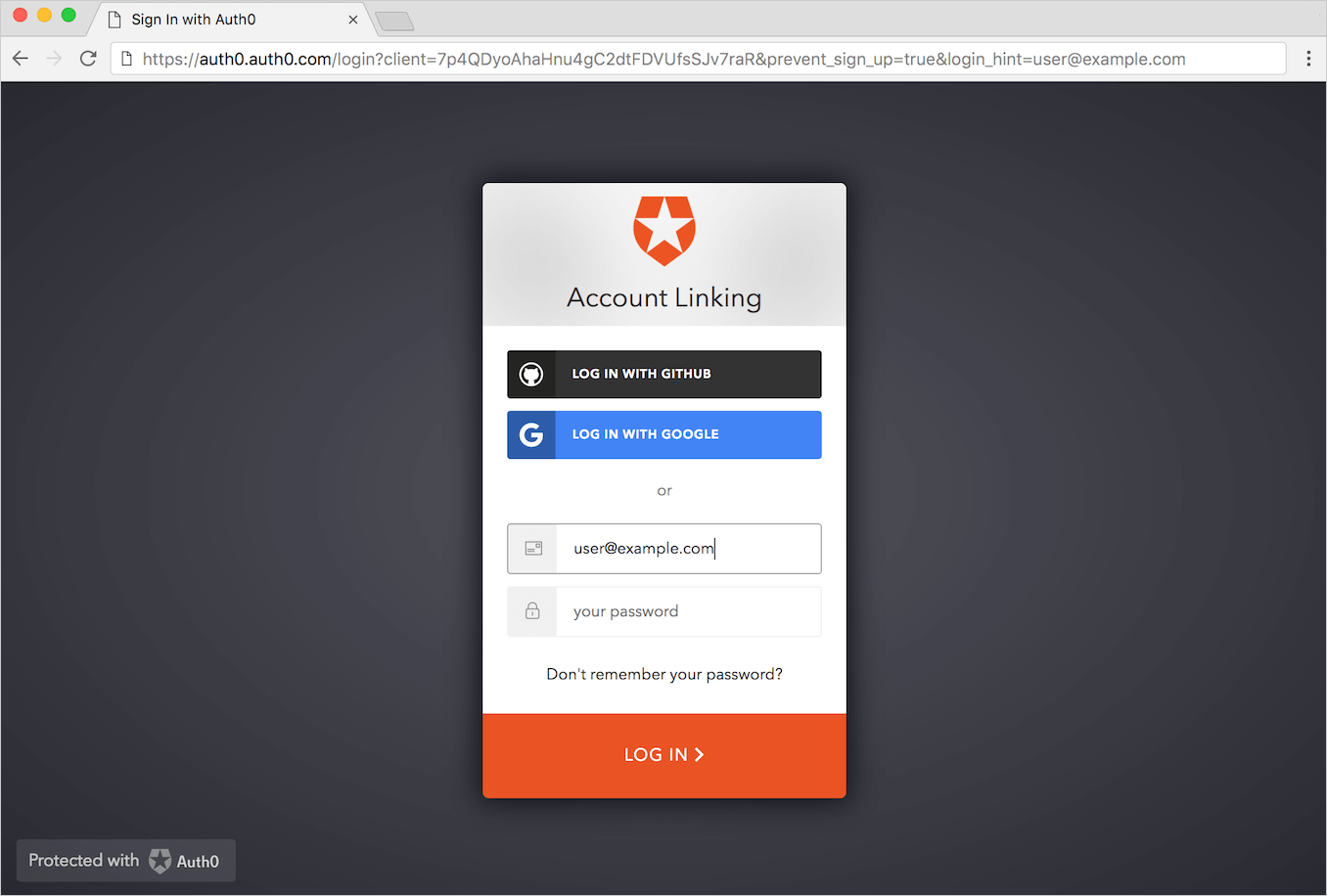 Hiding the Signup link is not supported in the Universal Login Experience.
## Customize theme
At installation (or any time after by clicking the **Settings** icon for the Account Link Extension), you can add a URL to a custom stylesheet if you would like to customize the extension page to look a bit different from the default theme.
Hiding the Signup link is not supported in the Universal Login Experience.
## Customize theme
At installation (or any time after by clicking the **Settings** icon for the Account Link Extension), you can add a URL to a custom stylesheet if you would like to customize the extension page to look a bit different from the default theme.
 ## Administration Panel
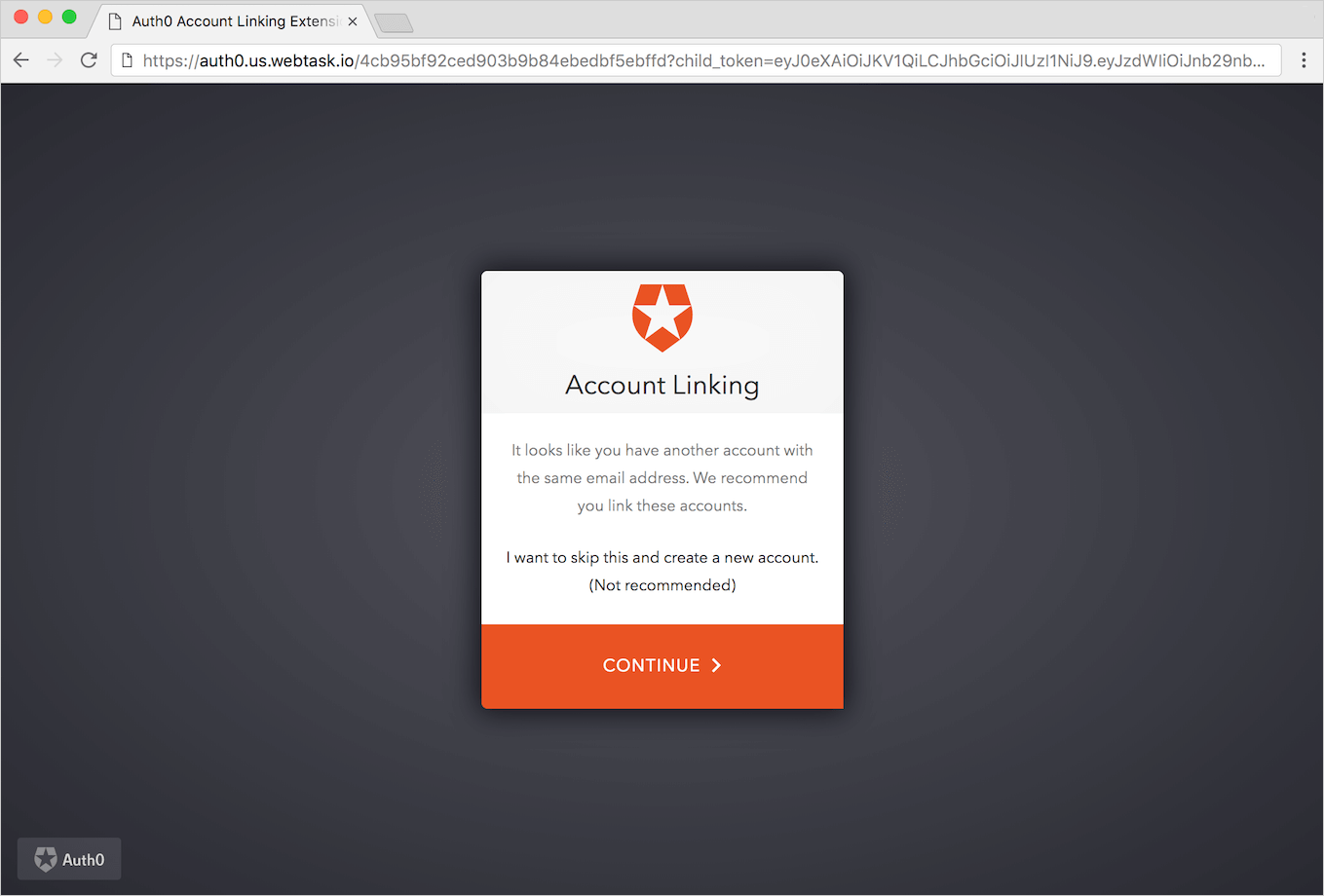
You can customize your account linking login page and widget using the extension administration panel.
1. Go to [Dashboard > Extensions > Installed Extensions > Auth0 Account Link](https://manage.auth0.com/#/extensions/installed).
2. You will be redirected to the admin site. There you can edit the HTML code of your hosted page and change some settings of the account linking widget such as title, logo, color, and language.
Do not remove `{{ ExtensionCSS }}`, `{{ CustomCSS }}`, `{{ Auth0Widget }}`, or `{{ ExtensionScripts }}` from the HTML code of the site. This will cause the extension to not display the account linking widget.
## Custom domains
If you're using a custom domain, you'll need to set the configs rule `customDomain` with the custom domain (for example, `auth.custom.com`).
1. Go to [Auth0 Dashboard > Auth Pipeline > Rules](https://manage.auth0.com/#/rules).
2. By default, line 27 of the rule is:
`issuer: auth0.domain`You will need to change this to:
`issuer: "myCustomDomain.com"
Make` sure to omit the protocol portion of the URL.
## Learn more
* [User Account Linking](/docs/manage-users/user-accounts/user-account-linking)
* [Link User Accounts](/docs/manage-users/user-accounts/user-account-linking/link-user-accounts)
* [User Account Linking: Server-Side Implementation](/docs/manage-users/user-accounts/user-account-linking/suggested-account-linking-server-side-implementation)
* [User-Initiated Account Linking: Client-Side Implementation](/docs/manage-users/user-accounts/user-account-linking/user-initiated-account-linking-client-side-implementation)
* [Migrate to Access Tokens for Account Linking](/docs/troubleshoot/product-lifecycle/past-migrations/link-user-accounts-with-access-tokens-migration)
## Administration Panel
You can customize your account linking login page and widget using the extension administration panel.
1. Go to [Dashboard > Extensions > Installed Extensions > Auth0 Account Link](https://manage.auth0.com/#/extensions/installed).
2. You will be redirected to the admin site. There you can edit the HTML code of your hosted page and change some settings of the account linking widget such as title, logo, color, and language.
Do not remove `{{ ExtensionCSS }}`, `{{ CustomCSS }}`, `{{ Auth0Widget }}`, or `{{ ExtensionScripts }}` from the HTML code of the site. This will cause the extension to not display the account linking widget.
## Custom domains
If you're using a custom domain, you'll need to set the configs rule `customDomain` with the custom domain (for example, `auth.custom.com`).
1. Go to [Auth0 Dashboard > Auth Pipeline > Rules](https://manage.auth0.com/#/rules).
2. By default, line 27 of the rule is:
`issuer: auth0.domain`You will need to change this to:
`issuer: "myCustomDomain.com"
Make` sure to omit the protocol portion of the URL.
## Learn more
* [User Account Linking](/docs/manage-users/user-accounts/user-account-linking)
* [Link User Accounts](/docs/manage-users/user-accounts/user-account-linking/link-user-accounts)
* [User Account Linking: Server-Side Implementation](/docs/manage-users/user-accounts/user-account-linking/suggested-account-linking-server-side-implementation)
* [User-Initiated Account Linking: Client-Side Implementation](/docs/manage-users/user-accounts/user-account-linking/user-initiated-account-linking-client-side-implementation)
* [Migrate to Access Tokens for Account Linking](/docs/troubleshoot/product-lifecycle/past-migrations/link-user-accounts-with-access-tokens-migration)