> ## Documentation Index
> Fetch the complete documentation index at: https://docs-staging-docs-event-stream-action-templates.mintlify.site/llms.txt
> Use this file to discover all available pages before exploring further.

> Describes how to use Auth0 Actions Modules

# Write Your First Action Module

export const AuthCodeGroup = ({children, dropdown}) => {
  const [processedChildren, setProcessedChildren] = useState(children);
  useEffect(() => {
    let unsubscribe = null;
    function init() {
      unsubscribe = window.autorun(() => {
        const processChildren = node => {
          if (typeof node === "string") {
            let processedNode = node;
            for (const [key, value] of window.rootStore.variableStore.values.entries()) {
              const escapedKey = key.replaceAll(/[.*+?^${}()|[\]\\]/g, (String.raw)`\$&`);
              processedNode = processedNode.replaceAll(new RegExp(escapedKey, "g"), value);
            }
            return processedNode;
          } else if (Array.isArray(node)) {
            return node.map(processChildren);
          } else if (node && node.props && node.props.children) {
            return {
              ...node,
              props: {
                ...node.props,
                children: processChildren(node.props.children)
              }
            };
          }
          return node;
        };
        setProcessedChildren(processChildren(children));
      });
    }
    if (window.rootStore) {
      init();
    } else {
      window.addEventListener("adu:storeReady", init);
    }
    return () => {
      window.removeEventListener("adu:storeReady", init);
      unsubscribe?.();
    };
  }, [children]);
  return <CodeGroup dropdown={dropdown}>{processedChildren}</CodeGroup>;
};

## Get Started

Use the quickstart to write an Action Module and use it from an Action to send logs to an external service.

<Steps>
  <Step title="Create an Action Module" titleSize="h3" stepNumber={1}>
    To use an Action Module from a specific Action, you first need to create the Action Module and then add/use it in an Action.

    <Tabs>
      <Tab title="Dashboard">
        1. Navigate to [Auth0 Dashboard > Actions > Library](https://manage.auth0.com/#/actions/library) then select **Modules**.
        2. Select **Create Module**.
        3. Enter a **Name**.
        4. Select **Create**.

        Auth0 displays the Code Editor

        <Frame>
          <img src="https://mintcdn.com/docs-staging-docs-event-stream-action-templates/dXzfzKhc8v6GUPhU/docs/images/customize/actions/modules/actions-modules-new-module.png?fit=max&auto=format&n=dXzfzKhc8v6GUPhU&q=85&s=01f89c11394cc6eb49d2f88f354a523e" alt="Actions Modules - New Action Module" width="1414" height="669" data-path="docs/images/customize/actions/modules/actions-modules-new-module.png" />
        </Frame>
      </Tab>
    </Tabs>
  </Step>

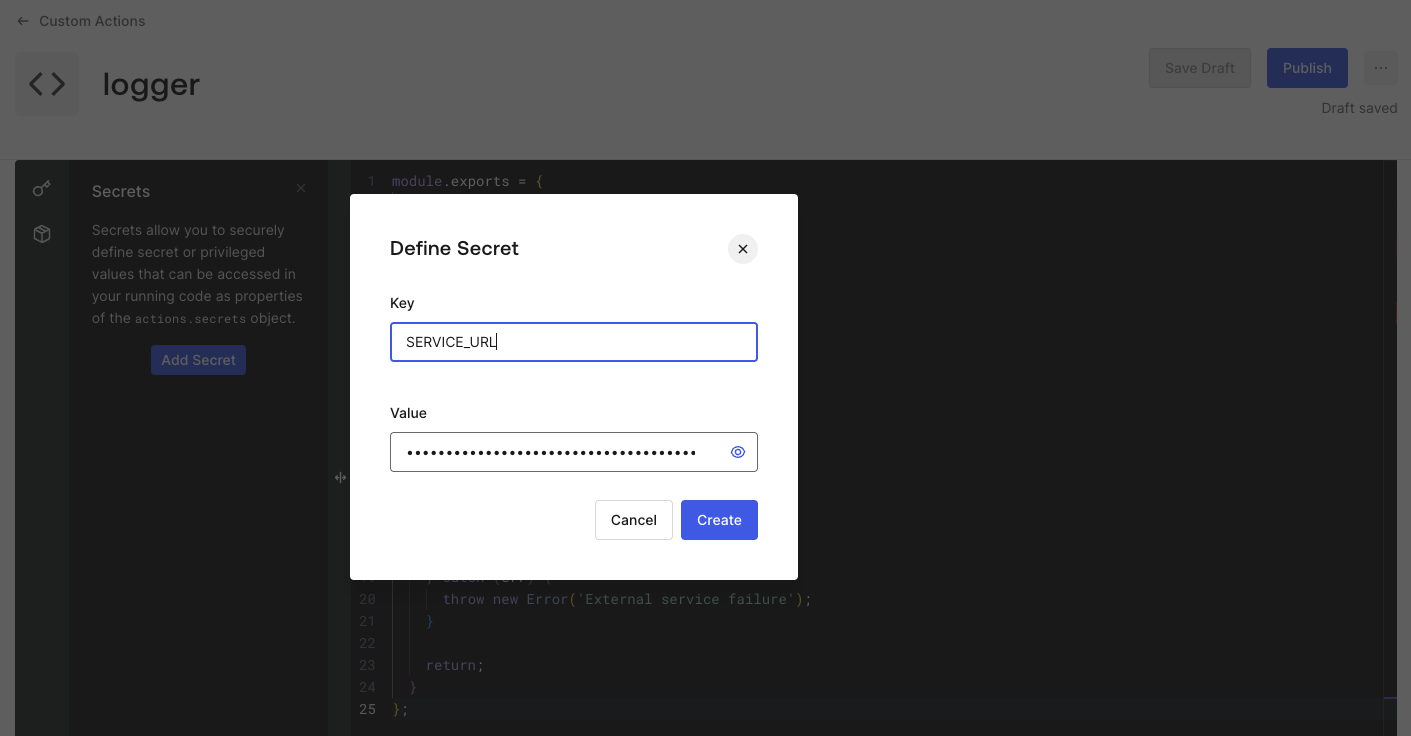
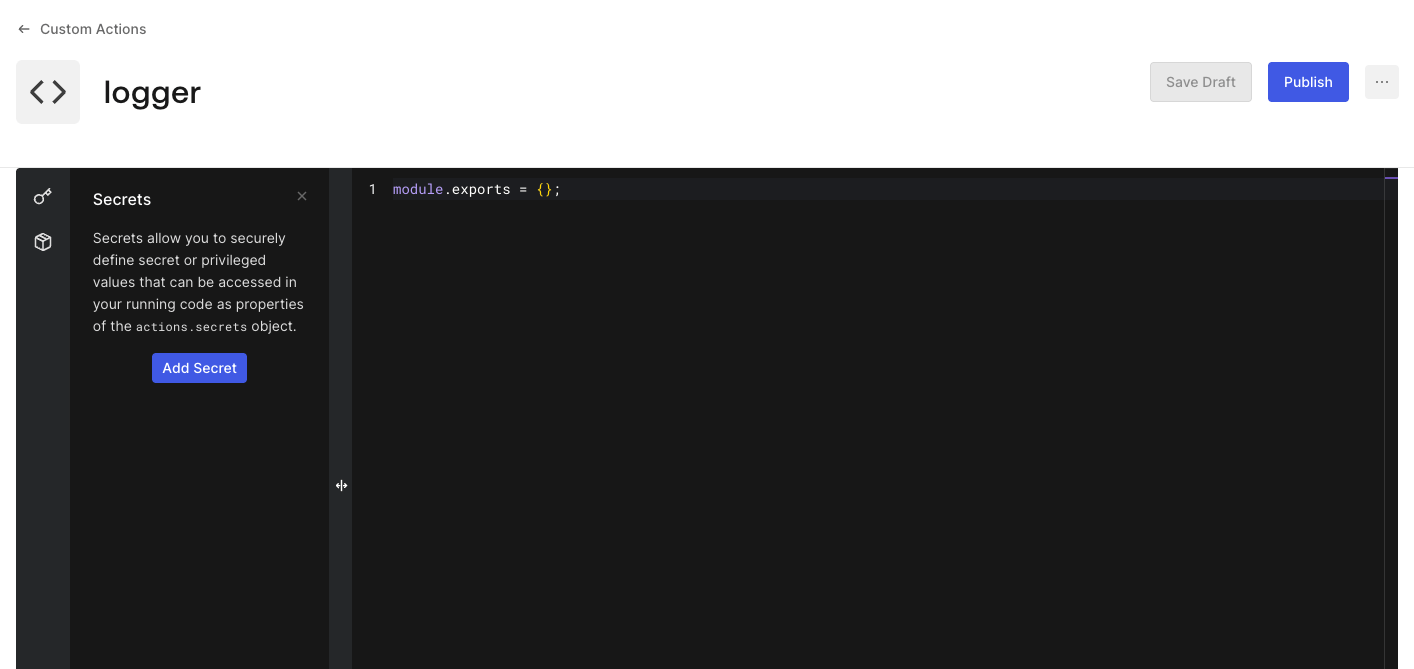
  <Step title="Add a Secret" titleSize="h3" stepNumber={2}>
    Each Action Module can contain secret key/values pairs. Use these to hold sensitive information, such as API Keys, certificates, and values that may change across environments.

    <Tabs>
      <Tab title="Dashboard">
        Let’s store the external service URL as a Secret.

        1. Select the **<svg style={{ display: 'inline' }} width="20" height="20" viewBox="0 0 24 24" fill="currentColor" xmlns="http://www.w3.org/2000/svg" class="sc-kJNqSH"><path fill-rule="evenodd" clip-rule="evenodd" d="M19.573 2.06l1.409 1.42-1.192 1.182L22.65 7.5l-4.756 4.72-2.86-2.838-2.783 2.764a6.196 6.196 0 011.196 3.63 6.172 6.172 0 01-1.832 4.41 6.277 6.277 0 01-8.853-.03l-.007-.008A6.183 6.183 0 011 15.782a6.184 6.184 0 011.831-4.335 6.271 6.271 0 017.987-.696l8.755-8.691zm-9.335 10.798l-.045-.043a4.264 4.264 0 00-2.987-1.182 4.262 4.262 0 00-2.966 1.233A4.184 4.184 0 003 15.8a4.183 4.183 0 001.185 2.95 4.276 4.276 0 006.022.016 4.2 4.2 0 001.24-2.984 4.171 4.171 0 00-1.21-2.924zm6.216-4.885l1.44 1.43L19.811 7.5l-1.44-1.43-1.917 1.903z" fill="inherit" /></svg>** icon from the code editor's left sidebar.
        2. Select **Add Secret**.
        3. Enter the **Name** as `SERVICE_URL`.
        4. Enter the external service URL at the **Value** field.
        5. Select **Create**.

        <Frame>
          <img src="https://mintcdn.com/docs-staging-docs-event-stream-action-templates/dXzfzKhc8v6GUPhU/docs/images/customize/actions/modules/actions-modules-secret.png?fit=max&auto=format&n=dXzfzKhc8v6GUPhU&q=85&s=4635d45b95020cc53329671d51512e3f" alt="Actions Modules - Secret added" width="1411" height="736" data-path="docs/images/customize/actions/modules/actions-modules-secret.png" />
        </Frame>

        Auth0 adds the Secret to the Action Module Secret list.
      </Tab>
    </Tabs>

    **Extra Step:** Repeat the steps to store an `API_KEY` as a Secret that you will send in the headers to the external service in each request.

    <Callout icon="file-lines" color="#0EA5E9" iconType="regular">
      Once you create a Secret, Auth0 never reveals its value. Auth0 encrypts all Secrets and stores them securely.
    </Callout>

    <Warning>
      Each **Action Module Secret** is independent from other **Actions Modules** and **Actions Secrets**.
    </Warning>

    <Callout icon="file-lines" color="#0EA5E9" iconType="regular">
      Use **Secrets** at the Action Module by typing `actions.secrets.[secret_key]`.
    </Callout>
  </Step>

  <Step title="Add Custom Logic" titleSize="h3" stepNumber={3}>
    Now, add the following code to your Action Module.

    <Tabs>
      <Tab title="Dashboard">
        Add the following code to your Action Module:

        ```javascript lines theme={null}
        module.exports = {
          sendLog: async (code, message) => {
            try {
              await fetch(actions.secrets.SERVICE_URL, {
                method: 'POST',
                headers: {
                  'X-API-Key': actions.secrets.API_KEY,
                },
                body: JSON.stringify({
                  code,
                  message
                }),
              });

              console.log({
                code,
                message
              });
            } catch (err) {
              throw new Error('External service failure');
            }

            return;
          }
        };
        ```
      </Tab>
    </Tabs>

    <Callout icon="file-lines" color="#0EA5E9" iconType="regular">
      Be aware of:

      * [Coding Guidelines](/docs/customize/actions/action-coding-guidelines#actions-modules)
      * [Limitations](/docs/customize/actions/limitations#actions-modules)
    </Callout>
  </Step>

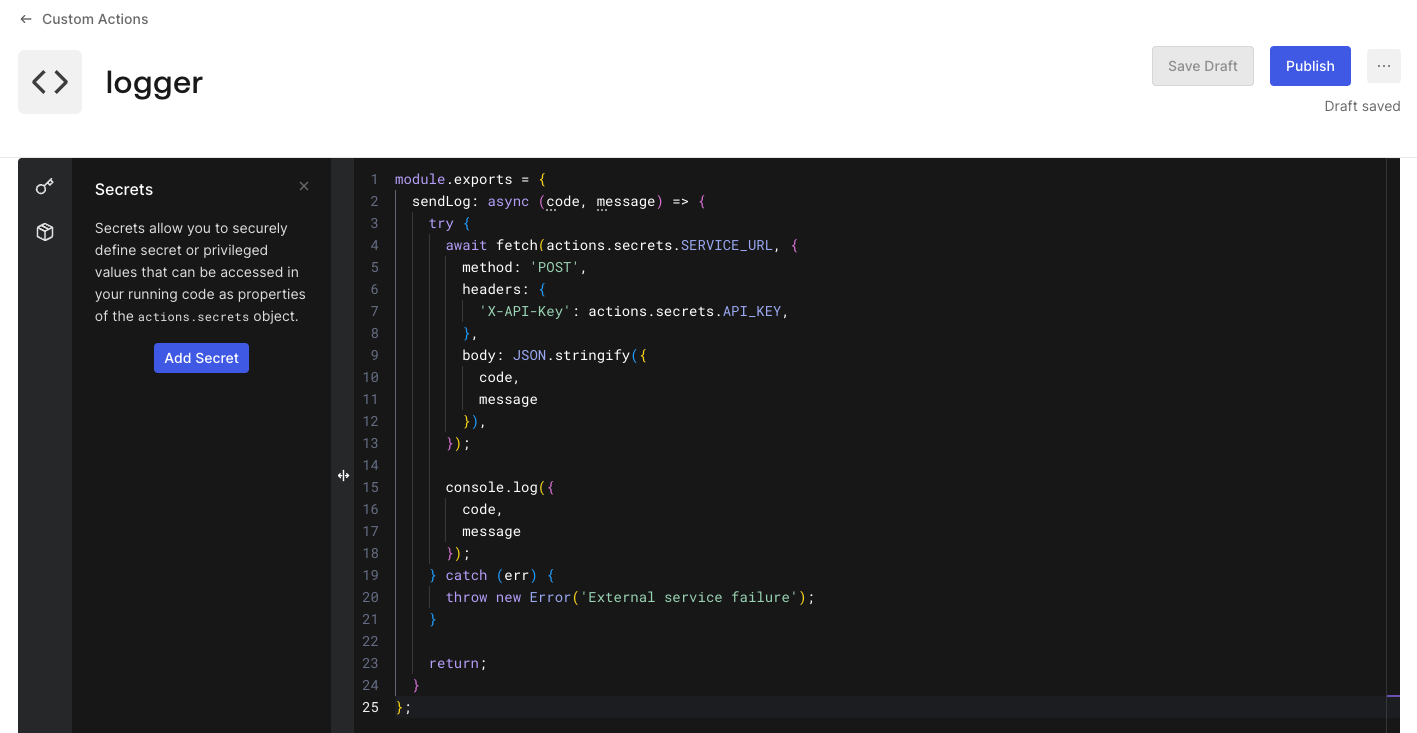
  <Step title="Save the Draft" titleSize="h3" stepNumber={4}>
    You can save a draft of your Action Module.

    <Tabs>
      <Tab title="Dashboard">
        1. Select **Save Draft**.

        <Frame>
          <img src="https://mintcdn.com/docs-staging-docs-event-stream-action-templates/dXzfzKhc8v6GUPhU/docs/images/customize/actions/modules/actions-modules-draft.png?fit=max&auto=format&n=dXzfzKhc8v6GUPhU&q=85&s=1d6057af617f87e49fabe6ee9ea7b9ab" alt="Actions Modules - Draft saved" width="1417" height="733" data-path="docs/images/customize/actions/modules/actions-modules-draft.png" />
        </Frame>
      </Tab>
    </Tabs>

    This saves your Action Module without publishing a new version, so it does not affect Actions using it.
  </Step>

  <Step title="Publish the Action Module" titleSize="h3" stepNumber={5}>
    Once you are satisfied with the Action Module code, it’s time to **Publish** it.

    <Tabs>
      <Tab title="Dashboard">
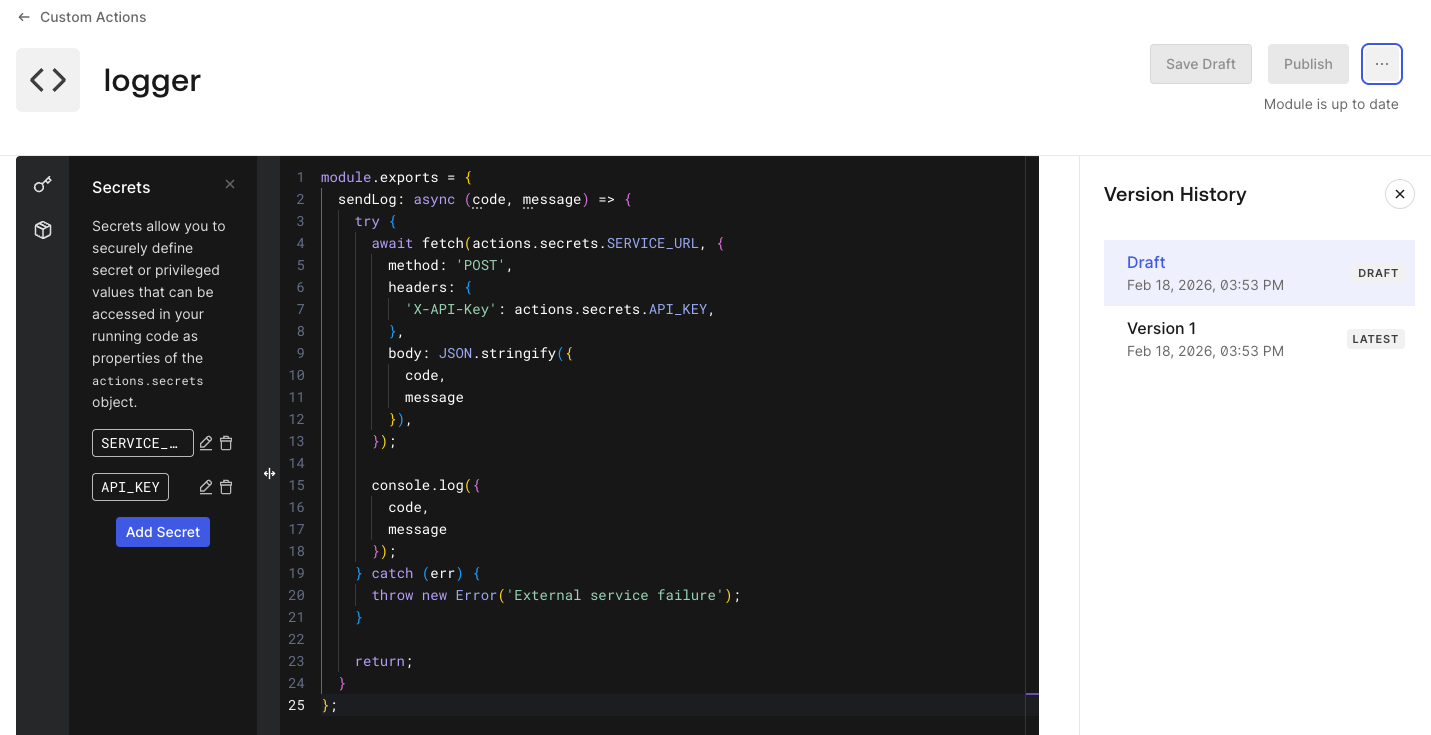
        1. Select **Publish**.

        <Callout icon="file-lines" color="#0EA5E9" iconType="regular">
          Publishing an Action Module takes a snapshot of it at that time and records it as an **Action Module Version**.
        </Callout>

        2. Select **View Version History**.

        <Frame>
          <img src="https://mintcdn.com/docs-staging-docs-event-stream-action-templates/dXzfzKhc8v6GUPhU/docs/images/customize/actions/modules/actions-modules-published-version.png?fit=max&auto=format&n=dXzfzKhc8v6GUPhU&q=85&s=0a94cd622ee9fabd510adbe4290ef2a0" alt="Actions Modules - Version History" width="1431" height="735" data-path="docs/images/customize/actions/modules/actions-modules-published-version.png" />
        </Frame>

        Auth0 displays the list of Action Module Versions including the draft.
      </Tab>
    </Tabs>

    You are now able to start using the Action Module in an Action.

    <Warning>
      Each **Action** must explicitly reference the **Action Module Version**, preventing automatic upgrades that could introduce unexpected errors.
    </Warning>
  </Step>

  <Step title="Add the Action Module in an Action" titleSize="h3" stepNumber={6}>
    Let’s add the Action Module in an Action.

    <Tabs>
      <Tab title="Dashboard">
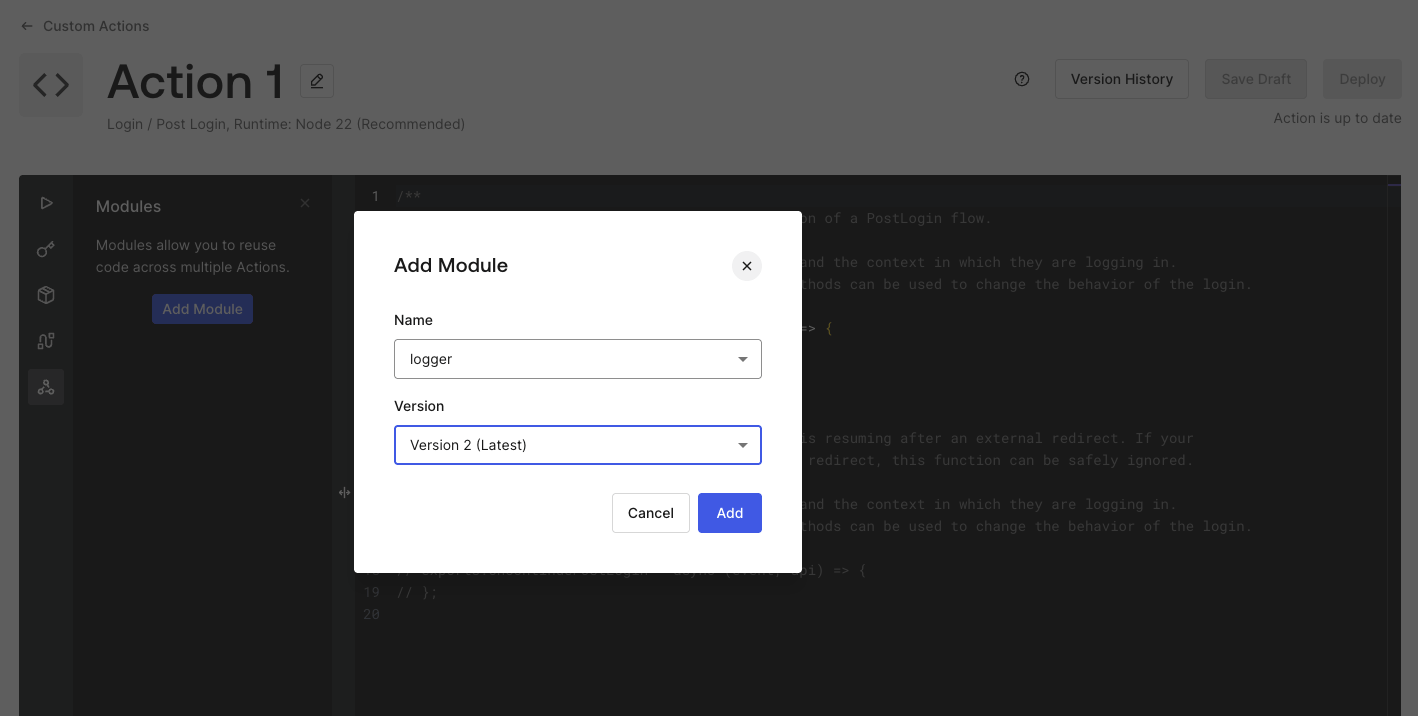
        1. Navigate to [Auth0 Dashboard > Actions > Library](https://manage.auth0.com/#/actions/library) then select a specific **Action**.
        2. Once at the Action Editor, select the **<svg style={{ display: 'inline' }} width="20" height="20" viewBox="0 0 24 24" fill="currentColor" xmlns="http://www.w3.org/2000/svg" class="sc-hQYogJ"><path fill-rule="evenodd" clip-rule="evenodd" d="M9.388 4.07A3.717 3.717 0 0112 3c.977 0 1.917.383 2.612 1.07A3.65 3.65 0 0115.7 6.667a3.65 3.65 0 01-1.028 2.537l1.683 2.778-1.71 1.036-1.701-2.806a3.733 3.733 0 01-3.556-.948A3.65 3.65 0 018.3 6.667c0-.977.393-1.91 1.088-2.597zM12 5c-.455 0-.889.179-1.207.493a1.65 1.65 0 00-.493 1.174c0 .438.176.86.493 1.174.318.314.752.492 1.207.492.455 0 .889-.178 1.207-.492a1.65 1.65 0 00.493-1.174c0-.438-.176-.86-.493-1.174A1.717 1.717 0 0012 5zM6.697 13.802l1.98-2.87 1.646 1.136-1.911 2.77c.633.677.988 1.567.988 2.495a3.65 3.65 0 01-1.088 2.597A3.717 3.717 0 015.7 21a3.717 3.717 0 01-2.612-1.07A3.65 3.65 0 012 17.333c0-.976.393-1.91 1.088-2.597a3.717 3.717 0 013.61-.934zM5.7 15.667c-.455 0-.889.178-1.206.492A1.65 1.65 0 004 17.333c0 .438.176.86.494 1.175.317.313.751.492 1.206.492.455 0 .889-.179 1.206-.492a1.65 1.65 0 00.494-1.175c0-.438-.176-.86-.494-1.174a1.717 1.717 0 00-1.206-.492zM15.688 14.736a3.717 3.717 0 012.612-1.07c.977 0 1.917.384 2.612 1.07A3.65 3.65 0 0122 17.333a3.65 3.65 0 01-1.088 2.597A3.717 3.717 0 0118.3 21a3.717 3.717 0 01-2.612-1.07 3.66 3.66 0 01-.948-1.597H11v-2h3.74c.172-.6.496-1.15.948-1.597zm2.612.93c-.455 0-.889.18-1.207.493a1.65 1.65 0 00-.493 1.174c0 .438.176.86.493 1.175.318.313.752.492 1.207.492.455 0 .889-.179 1.206-.492A1.65 1.65 0 0020 17.332c0-.438-.176-.86-.494-1.174a1.717 1.717 0 00-1.206-.492z" fill="inherit" /></svg>** icon from the left sidebar.
        3. Select **Add Module**.
        4. Select a Module **Name** and **Version**.
        5. Select **Add**.

        <Frame>
          <img src="https://mintcdn.com/docs-staging-docs-event-stream-action-templates/dXzfzKhc8v6GUPhU/docs/images/customize/actions/modules/actions-modules-add-module.png?fit=max&auto=format&n=dXzfzKhc8v6GUPhU&q=85&s=1c45db689def170bfead88d89ef67d28" alt="Actions - Add Action Module" width="1418" height="716" data-path="docs/images/customize/actions/modules/actions-modules-add-module.png" />
        </Frame>
      </Tab>
    </Tabs>
  </Step>

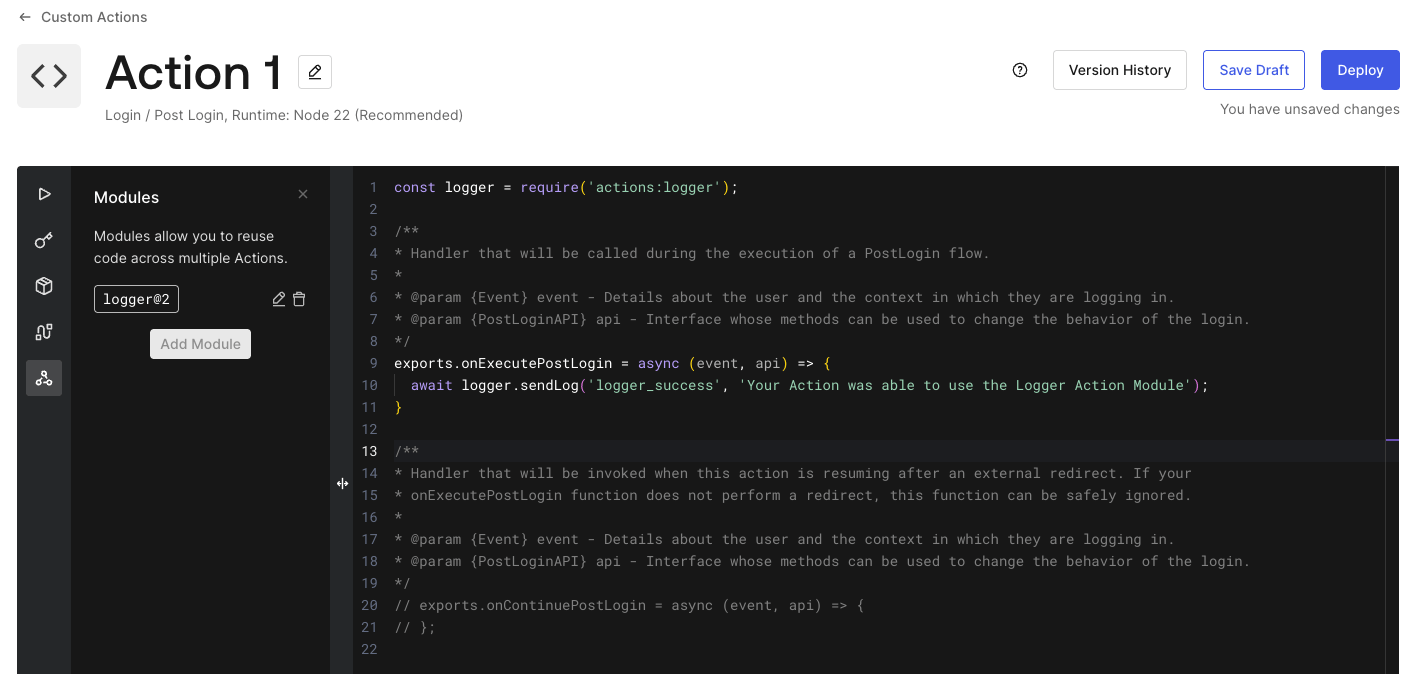
  <Step title="Use the Action Module in the Action" titleSize="h3" stepNumber={7}>
    Now, let’s use the Action Module in the Action.

    <Tabs>
      <Tab title="Dashboard">
        1. Add the **require** statement.

        ```javascript lines theme={null}
        const logger = require('actions:logger');
        ```

        <Callout icon="file-lines" color="#0EA5E9" iconType="regular">
          The **require** statement references the Action Module with the format **actions:\[module-name]**.
        </Callout>

        2. Add the call to `logger.sendLog` in the **Action function**, where you want to send logs.

        ```javascript lines theme={null}
        await logger.sendLog('logger_success', 'Your Action was able to use the Logger Action Module');
        ```

        3. Select **Deploy** the Action.

        <Frame>
          <img src="https://mintcdn.com/docs-staging-docs-event-stream-action-templates/dXzfzKhc8v6GUPhU/docs/images/customize/actions/modules/actions-modules-use-module.png?fit=max&auto=format&n=dXzfzKhc8v6GUPhU&q=85&s=4c437111fe5d636fdcbda730c38712a0" alt="Actions - Use Action Module" width="1418" height="674" data-path="docs/images/customize/actions/modules/actions-modules-use-module.png" />
        </Frame>
      </Tab>
    </Tabs>

    <Warning>
      Remember to bind the Action to a Trigger.
    </Warning>
  </Step>
</Steps>

<Check>
  **Checkpoint**

  You should now have a fully functional **Action Module** being used by an **Action**.
</Check>

***

## Advanced Usage

<Accordion title="NPM Dependencies">
  Each **Action Module** can add/use **[NPM Dependencies](https://www.npmjs.com/)**.

  <Tabs>
    <Tab title="Dashboard">
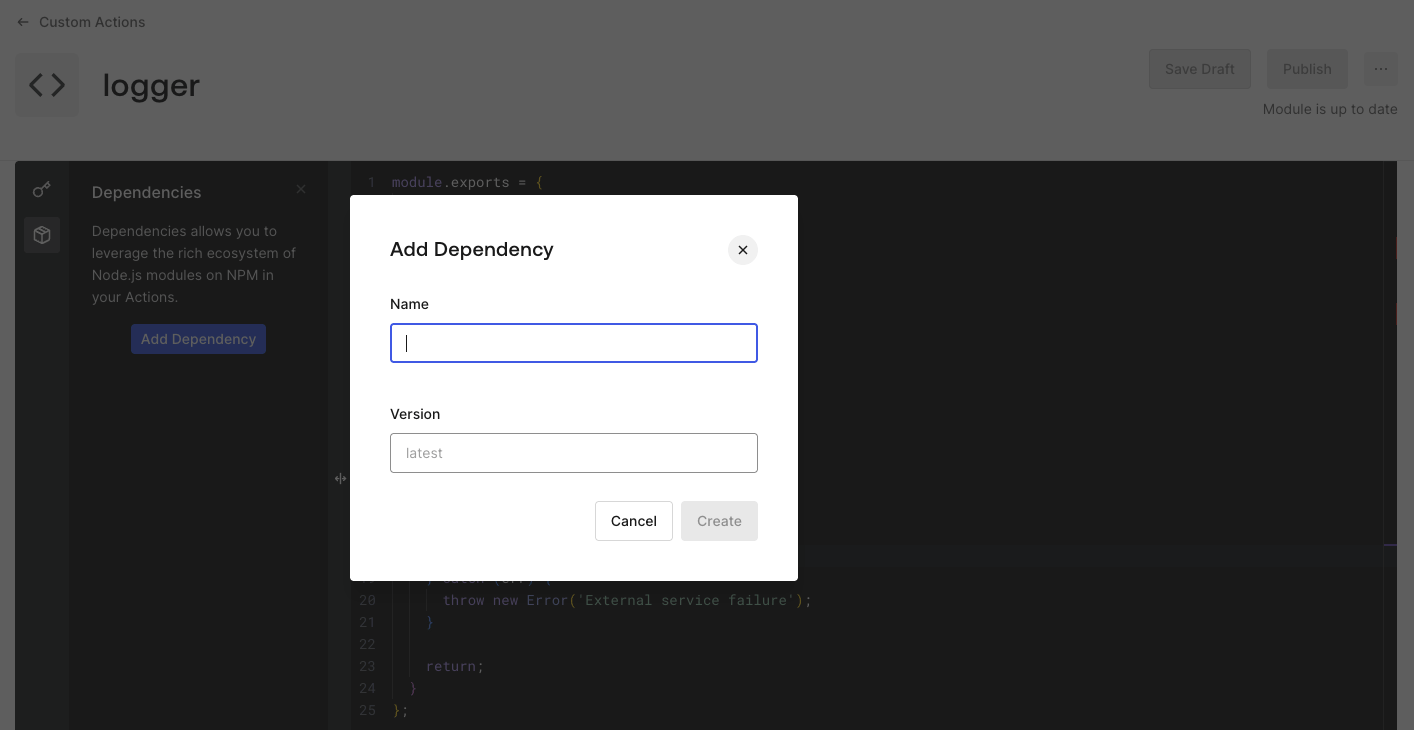
      1. Select the **<svg style={{ display: 'inline' }} width="20" height="20" viewBox="0 0 24 24" fill="currentColor" xmlns="http://www.w3.org/2000/svg" class="sc-lgWczb"><path fill-rule="evenodd" clip-rule="evenodd" d="M3.543 5.02l7.197-3.715h.003a2.75 2.75 0 012.514 0h.003l7.197 3.715h.002A2.864 2.864 0 0122 7.573v8.853a2.866 2.866 0 01-1.543 2.553l-7.197 3.714a2.75 2.75 0 01-2.529 0l-7.2-3.715-.002-.002A2.865 2.865 0 012 16.413v-8.84A2.865 2.865 0 013.543 5.02zm8.113-1.937l-1.97 1.018L16.5 7.618l2.315-1.195-6.47-3.34h-.001a.75.75 0 00-.688 0zM20 8.063l-7 3.611v8.902l6.542-3.377h.003a.865.865 0 00.455-.774V8.062zM11 20.58v-8.905L4 8.062v8.36a.866.866 0 00.45.778h.001L11 20.58zM5.185 6.423L12 9.94l2.32-1.197-6.815-3.517-2.32 1.197z" fill="inherit" /></svg>** icon from the code editor's left sidebar.
      2. Select **Add Dependency**.
      3. Enter the **Name** of the **NPM package**.
      4. Enter the **Version** of the **NPM package**.
      5. Select **Create**.

      <Frame>
        <img src="https://mintcdn.com/docs-staging-docs-event-stream-action-templates/dXzfzKhc8v6GUPhU/docs/images/customize/actions/modules/actions-modules-dependency.png?fit=max&auto=format&n=dXzfzKhc8v6GUPhU&q=85&s=71e41c10b3d0bd53fccac9e76f2fa219" alt="Actions Modules - Dependency added" width="1414" height="730" data-path="docs/images/customize/actions/modules/actions-modules-dependency.png" />
      </Frame>

      Auth0 adds the Dependency to the Action Module Dependency list.
    </Tab>
  </Tabs>

  <Callout icon="file-lines" color="#0EA5E9" iconType="regular">
    Use the listed **Dependencies** at the Action Module by requiring them through `require('[package-name]')`.
  </Callout>

  <Warning>
    When you save this Action, Auth0 resolves the latest version of your dependency and replaces it with a specific version number to keep future updates to the package from breaking your Action.

    You can provide a specific version instead of latest.
  </Warning>
</Accordion>